¶ Before Using the Program
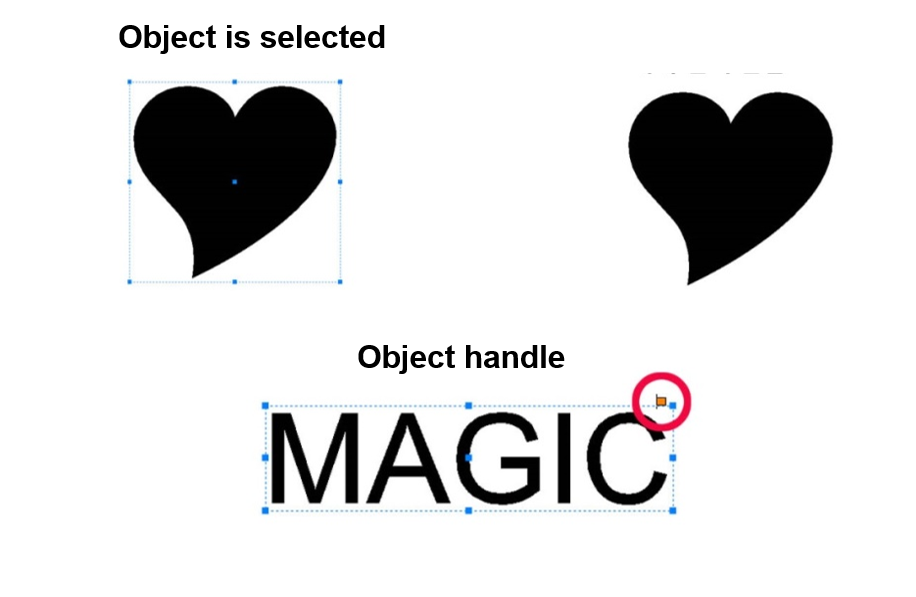
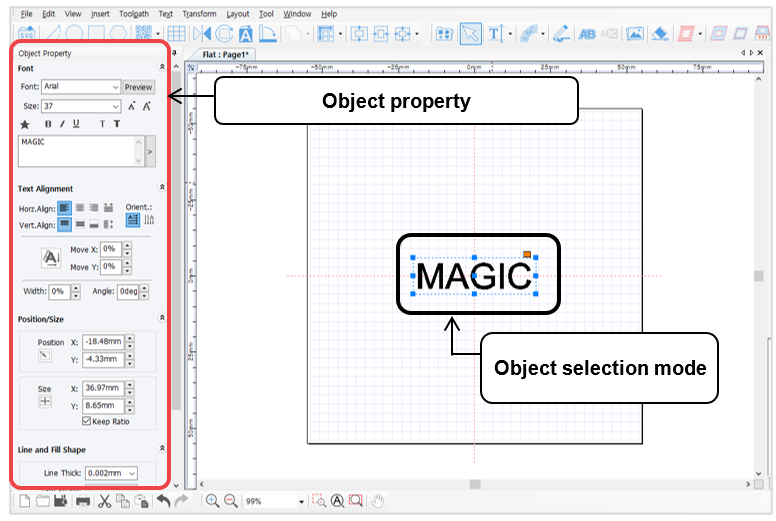
The property of the object (i.e., size, shape, position, etc.) can be changed or modified when the object is selected.
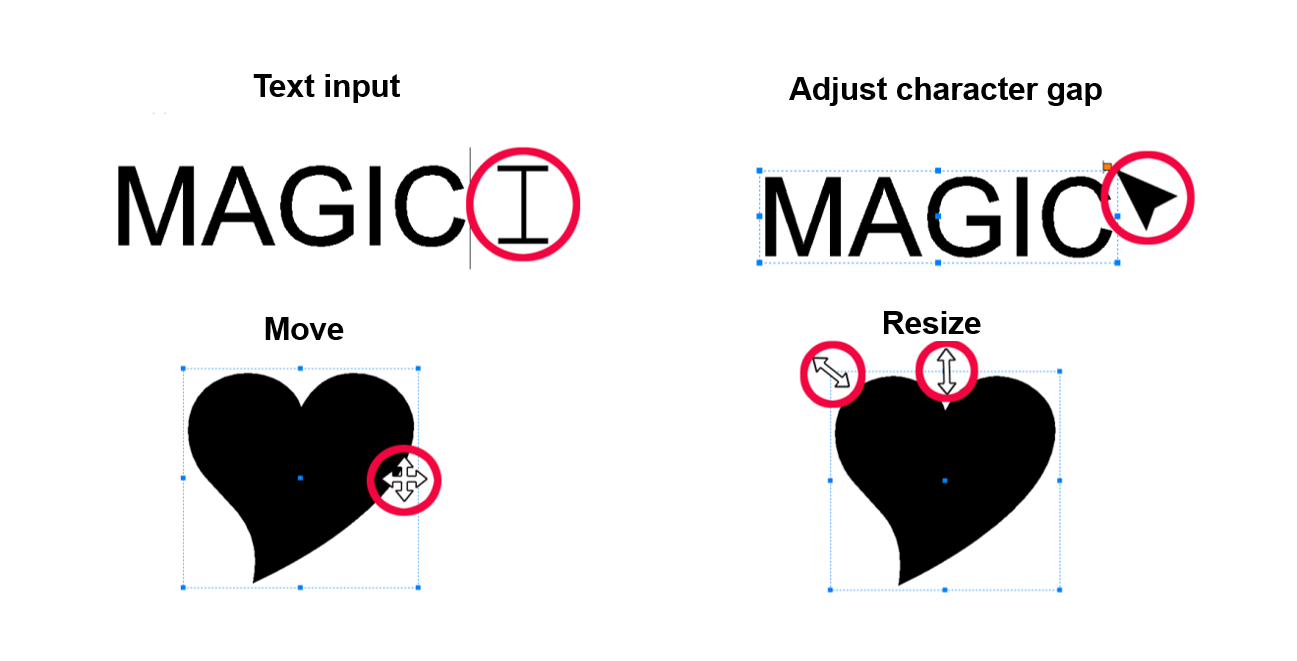
The mouse cursor display changes depending on the function (i.e., text input, resize, select, etc.).
¶ Program Usage Description
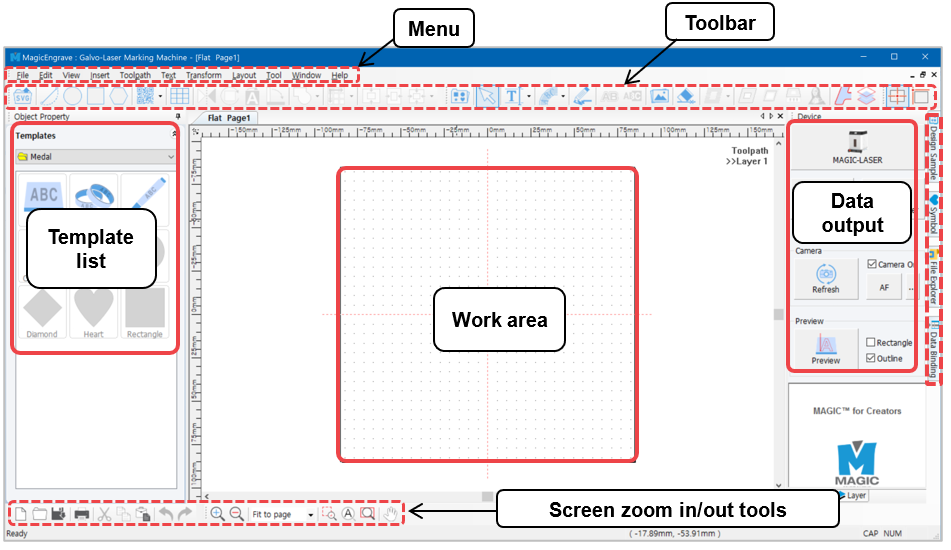
Shown below is the window that will appear once the program starts running. Icons displayed on the window may vary depending on the selected mode.
The name of each category is as follows:
Click [Text Input] button on the upper center of your screen or double-click on the composition area to input text.
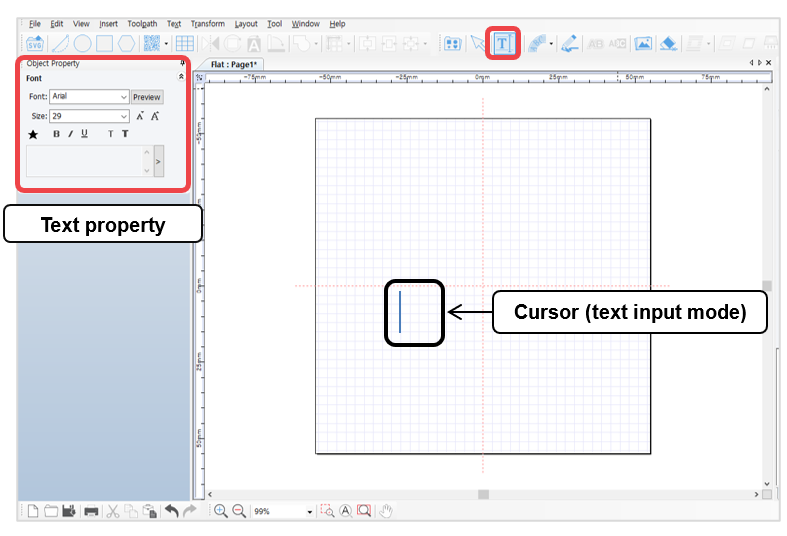
After entering the text, use [Selection] button with your mouse or right-click the text on the composition area to switch to selection mode.
To switch to text input mode, double-click on the selection mode.
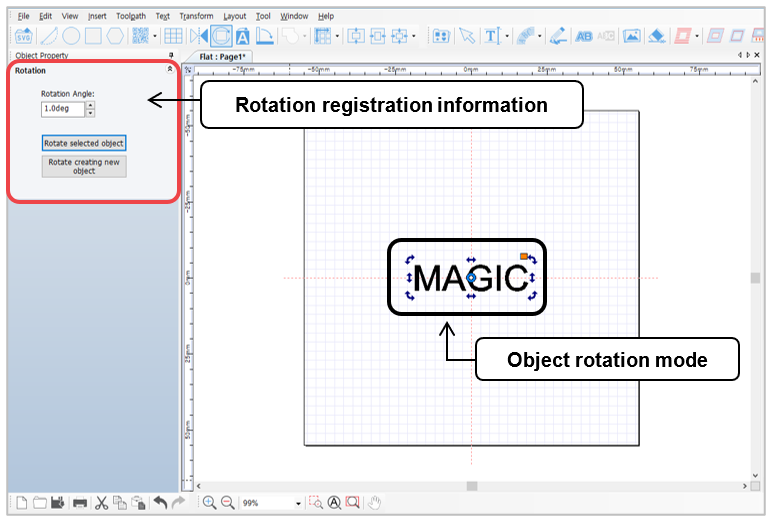
To activate object rotation mode, double-click the text while in selection mode.

- 1. Toolbar
- 2. Text Object Property
- 3. Rotation tool property
- 4. How to engrave for each toolpath
- 5. Create toolpath
- 6. Toolpath Object Property
- 7. Laser option
- 8. Data output
- 9. Auto focus
¶ Template creation
Template is an image that corresponds to the material to be engraved by 1:1 ratio. Load a template similar to the shape of the material to be engraved then enter the text. This allows you to easily and conveniently position your text and determine its size. Templates such as circle, heart, square and diamond are available in the program, and users can freely add more templates. Templates can be created by using graphic programs like Illustrator, Photoshop and CorelDraw, or by loading images in SVG file format, jpeg, bmp, png, etc.
¶ Saving as Design Sample
Edited texts, contents or designs can be saved as design samples for future use.