¶ 1. Loading an image
This program provides a function to load various types of image files. Supported image files are as follows.
| BMP | Windows or OS/2’s bitmap graphic file |
| GIF | CompuServe graphic file |
| JPG/JPEG | JPEG bitmap graphic file |
| PNG | Portable Network Graphics bitmap graphic file |
| PCX | Z Soft PC paintbrush bitmap file |
| TIF/TIFF | Tagged Image File Format bitmap file |
| WMF | Windows meta file |
Image file can be loaded through the following methods.
1. Select [Image] on the toolbar or select [Menu] → [Insert] → [Image].
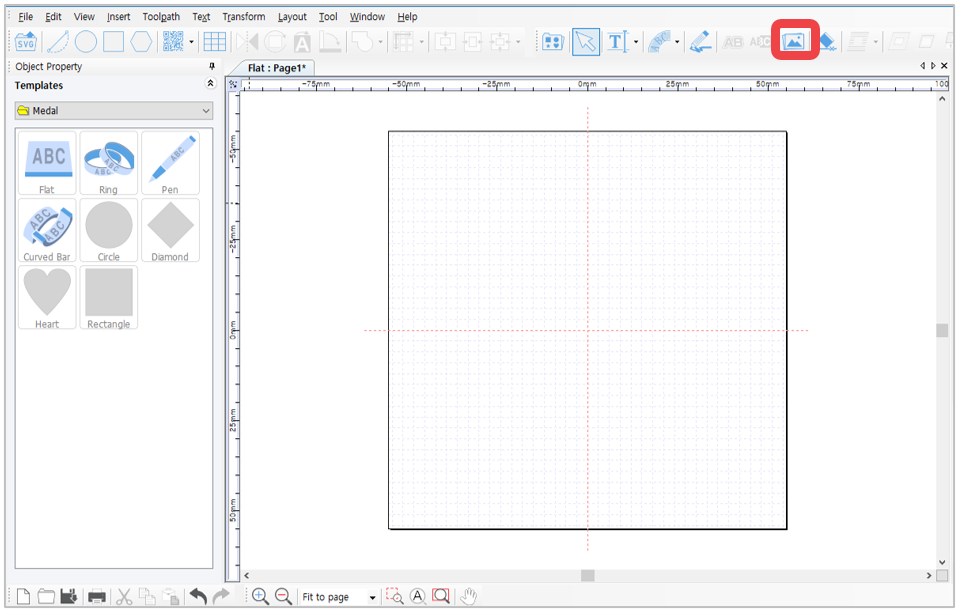
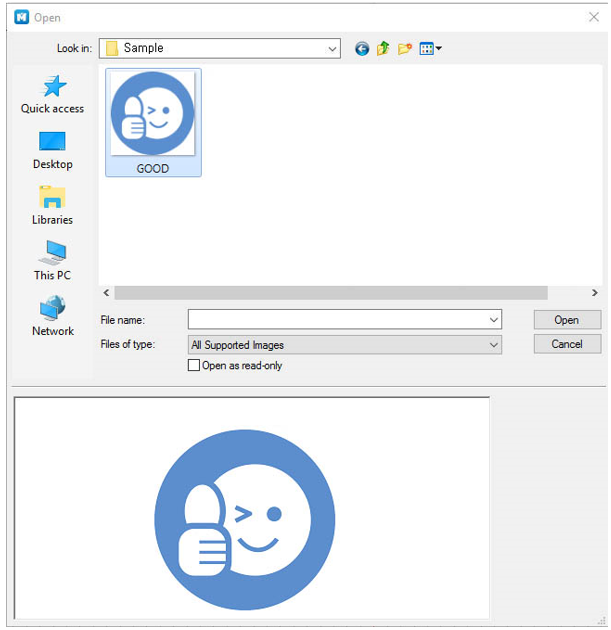
2. When “Open” window appears (as shown in the picture below), select the image to load then click “Open” button.
3. Drag the work area with the mouse to load the image according to desired size.
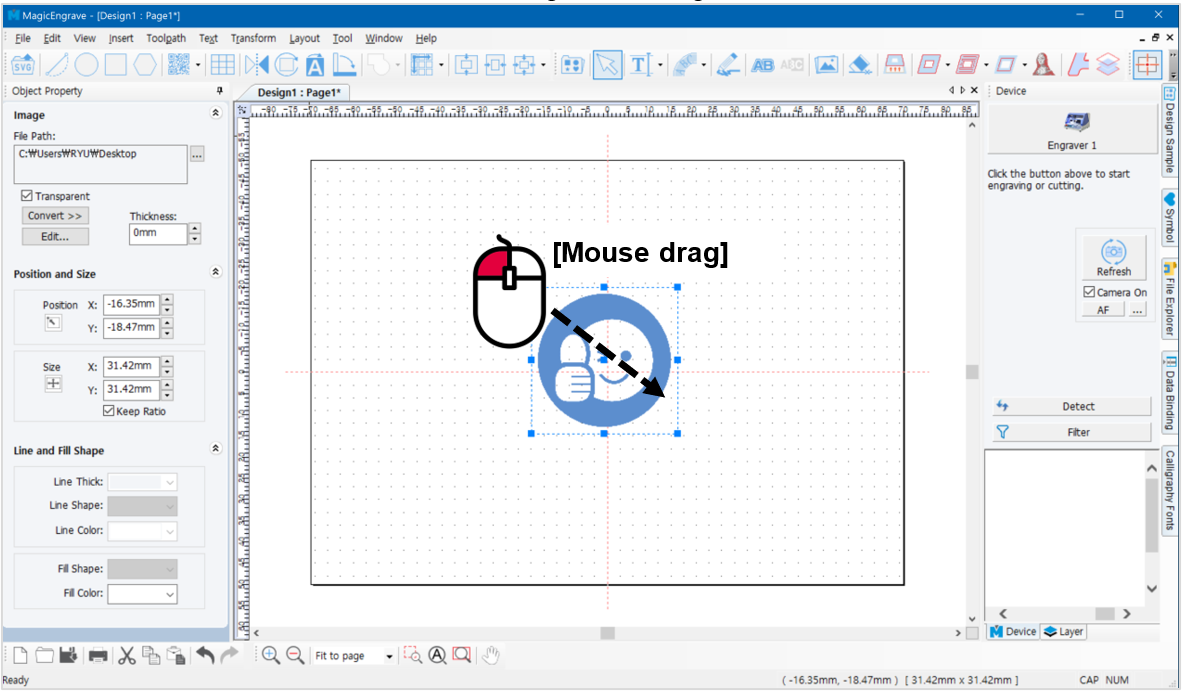
The machine can only engrave single-color images; not multi-color images. Multi-color images should be converted to single-color (1 bit) image.
¶ 2. Converting an image
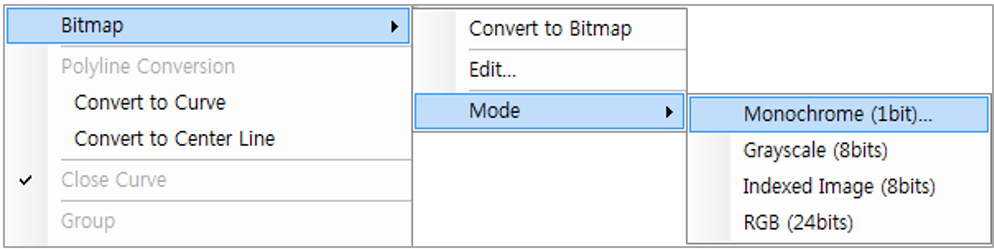
1. Select the image you want to convert. Click “Convert” button in the image object window then select “Monochrome (1bit).”
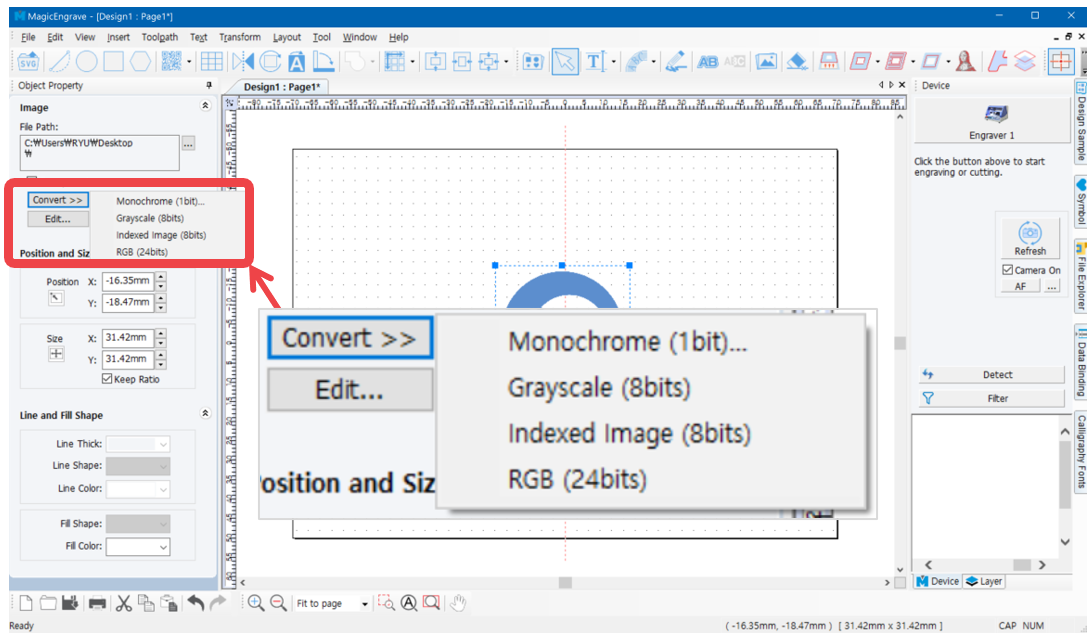
Or select the Transform menu → Bitmap → Mode → Monochrome (1bit).
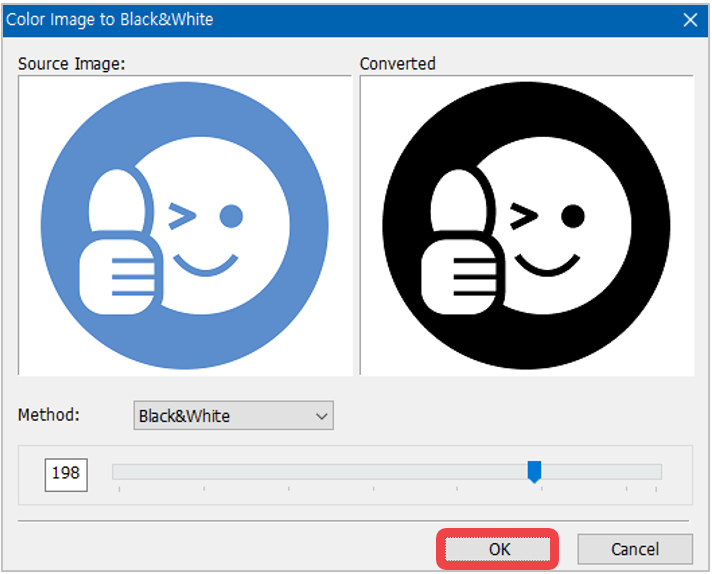
2. When “Color Image to Black & White” window appears, move the slider to adjust the level of color then click “OK” button.
¶ 3. Editing an image
Loaded image can be edited via “Paint” program in Windows.
Select the image object to be edited then right-click to select “Edit” or, select [Menu] → [Transform] → [Bitmap] → [Edit].
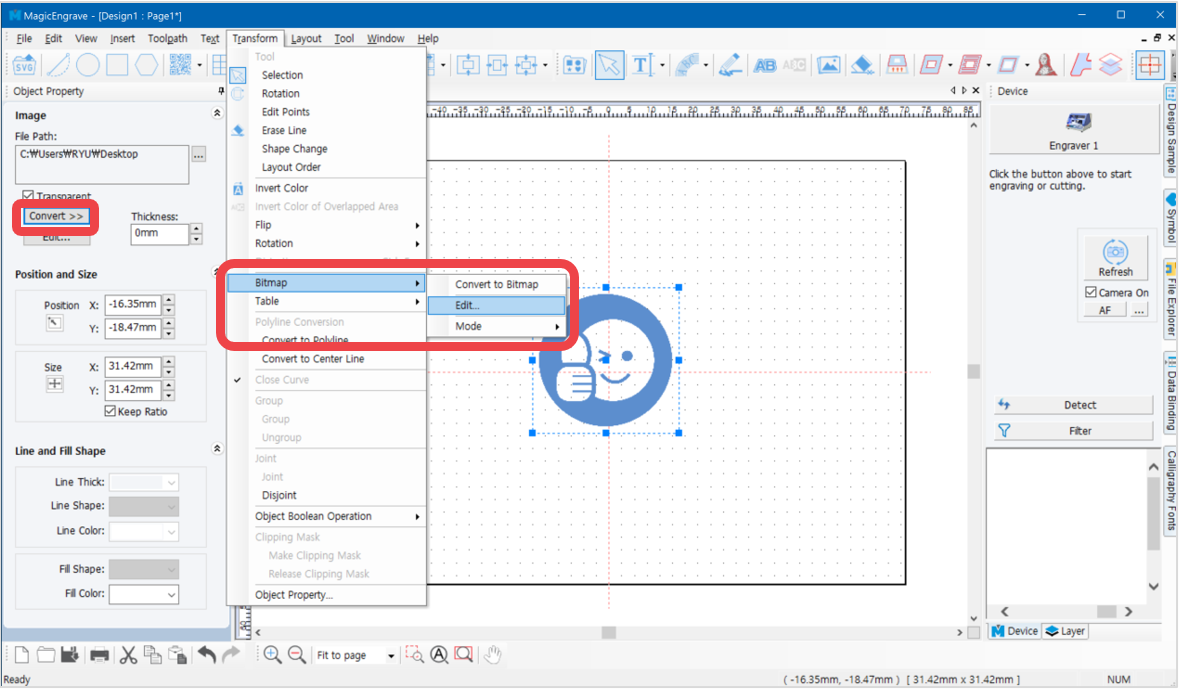
Click [OK] to run Windows Paint program.
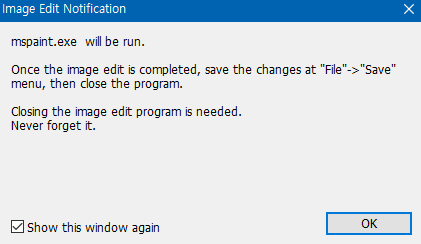
Then “Image Edit Notification” will appear.
Once editing is completed, click “Save” from Paint File menu then close the program to apply the changes.