¶ Creating template 1
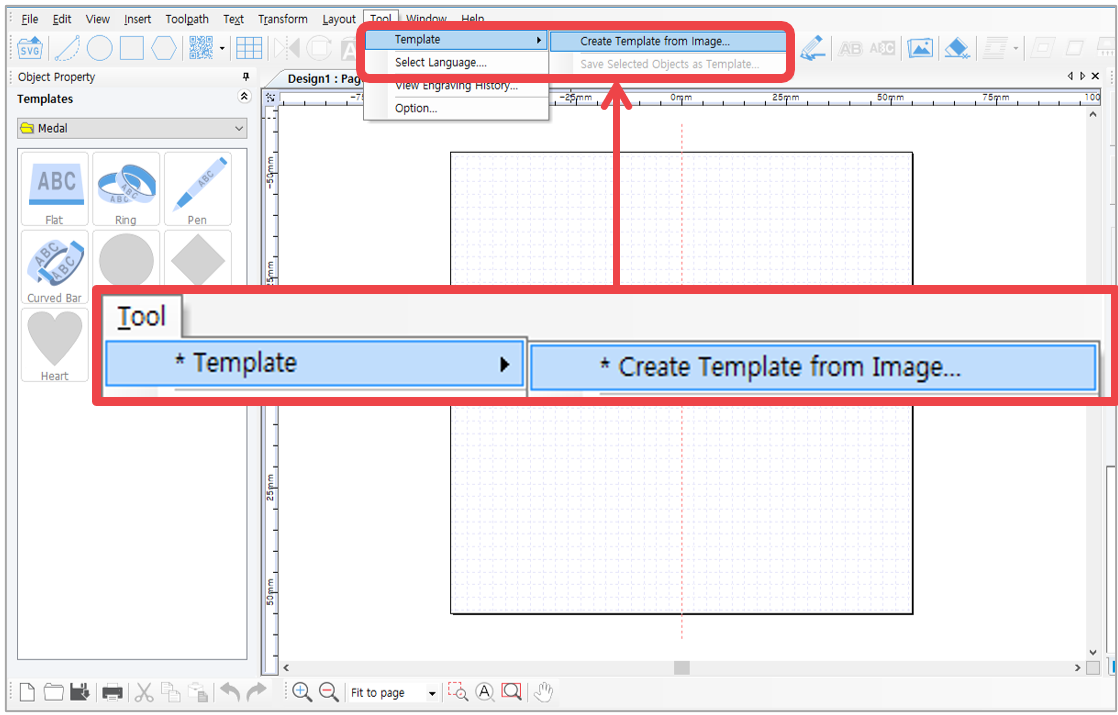
1. Select [Menu] → [Template] → [Create Template from Image].
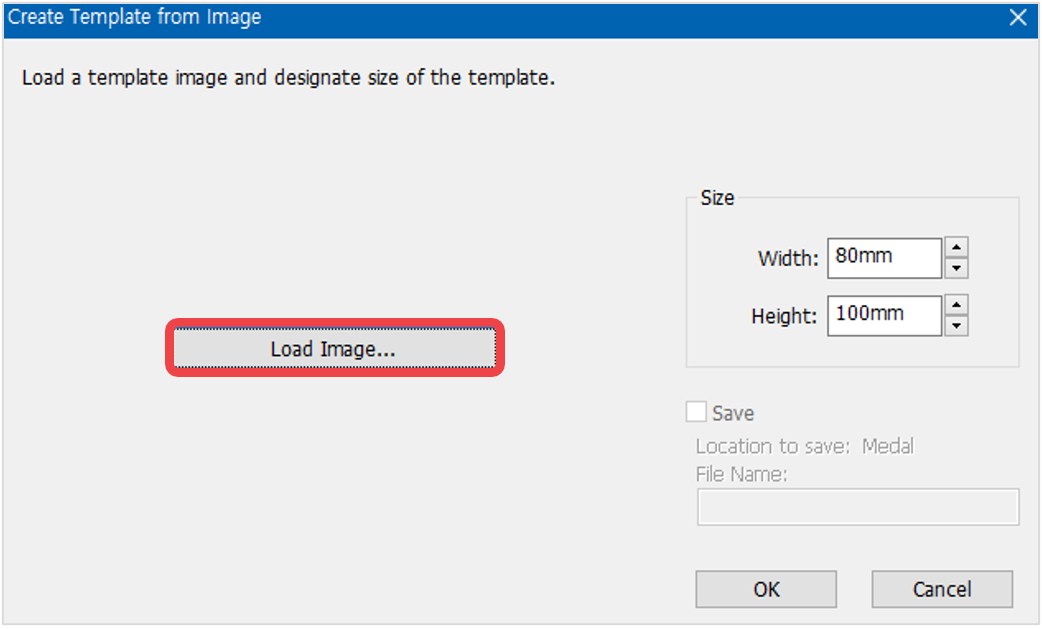
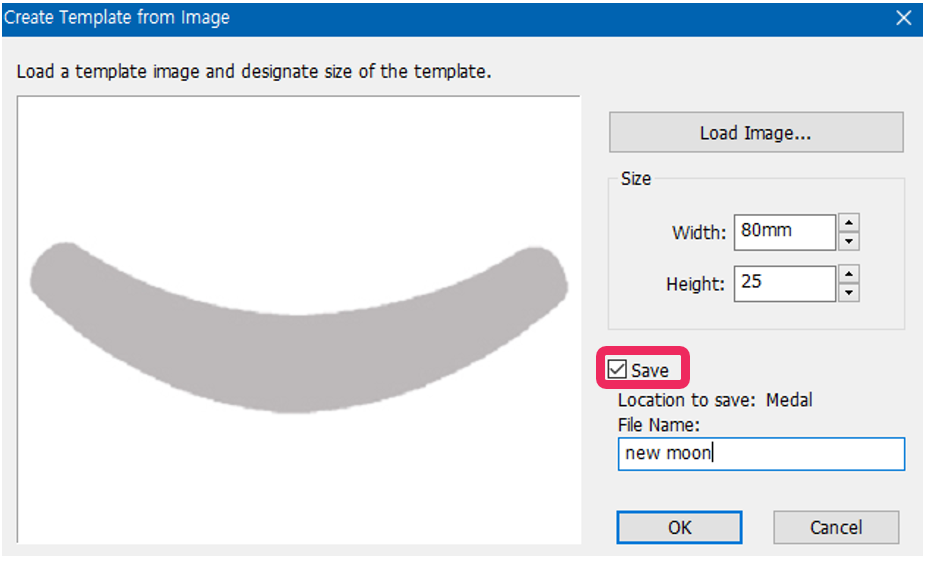
2. "Create Template from Image” window will appear.
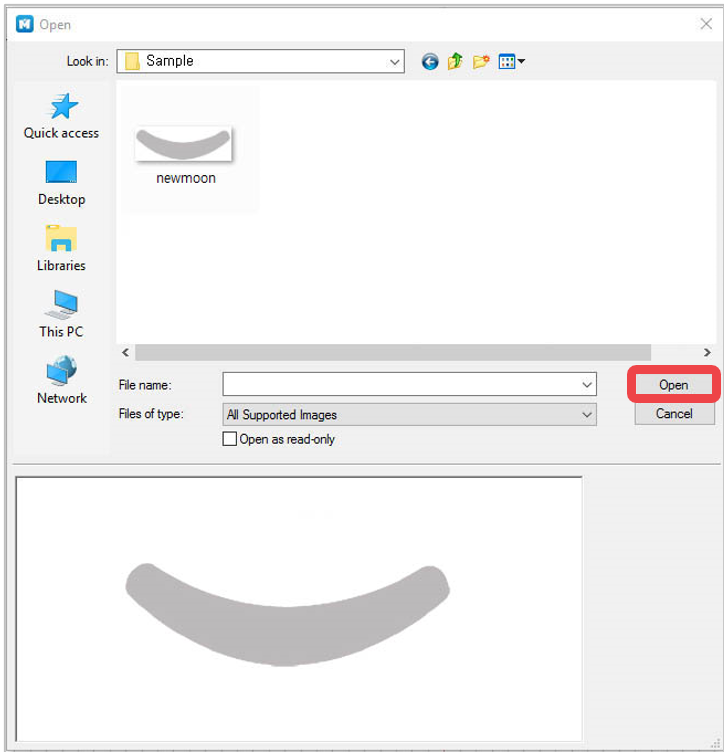
3. Select the image file (jpeg, bmp, png and etc.) from the “Open” window then click “Open” button.
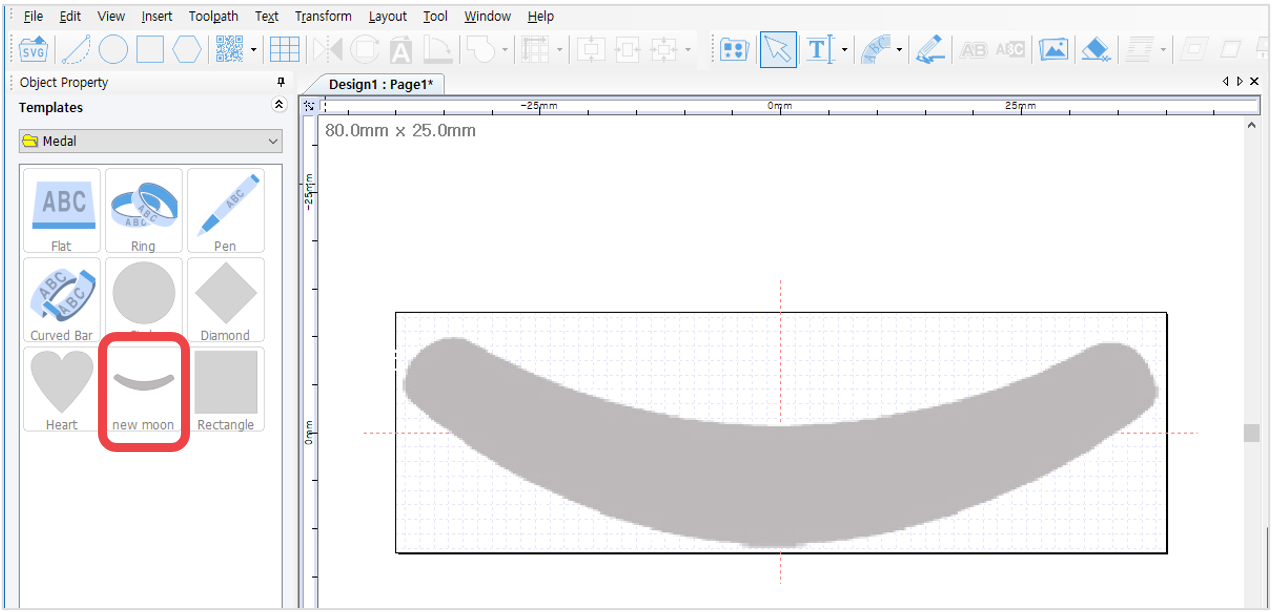
4. Enter the size of the template. Check “Save” to save the image as a template for later use then enter the file name. Click “OK” button to load the image as a template. The image will be saved as a template in the template library.
¶ Creating template 2
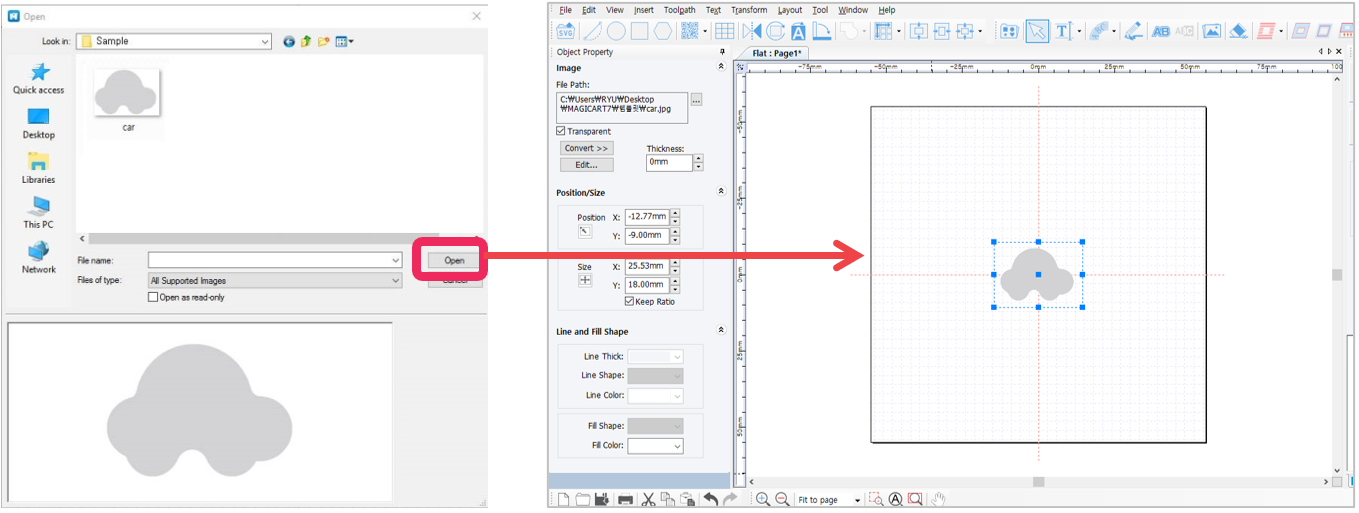
1. Click [Image] button to open an image file.
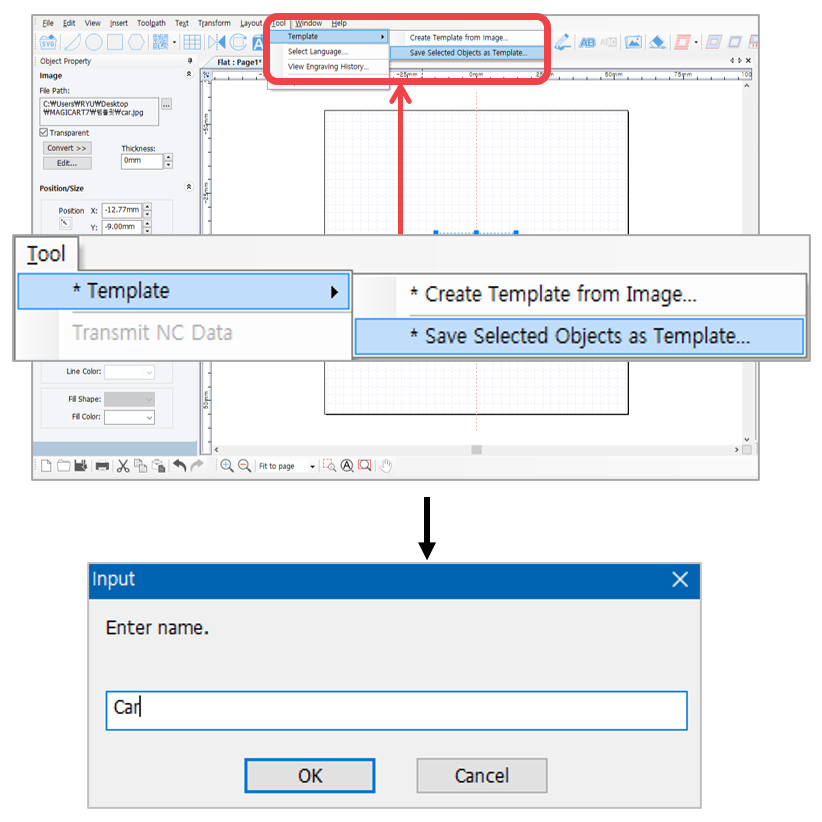
2. Select [Menu] → [Template] → [Save Selected Object as Template].
Enter a new template name in “Input” window then click “OK” button.
3. The saved template is added to the template library.
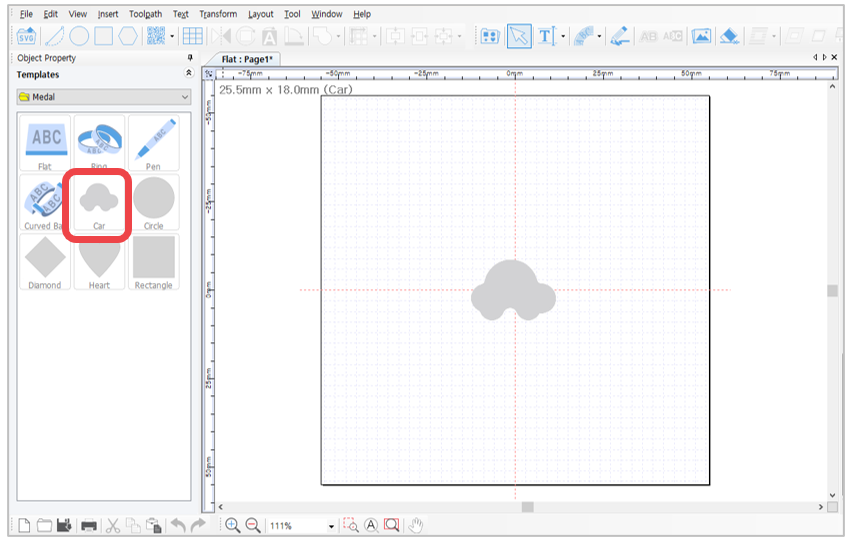
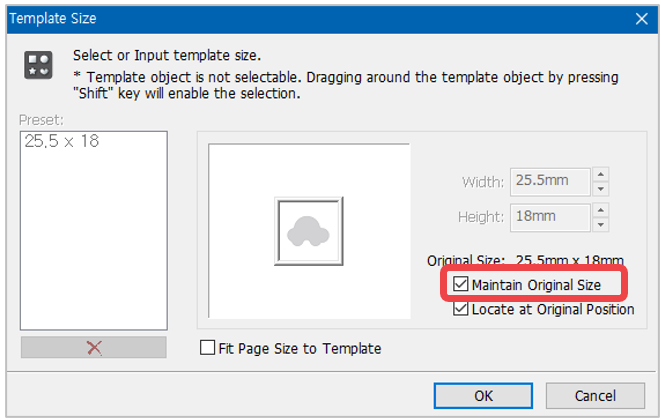
The saved template in the “Save Selected Object as Template” menu is saved based on the size designated on the screen. When loading a template, check “Maintain Original Size” so the template will be loaded based on the original size designated when the template was saved.
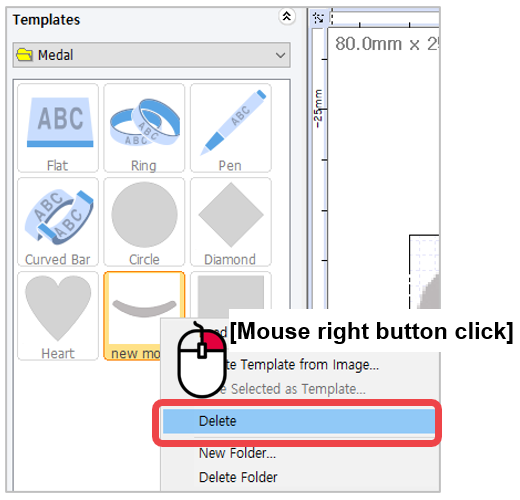
✽ Templates can be added or deleted. “Add” or “Delete” option can be selected by right-clicking in the template category window.