Use this function when changing numbers by certain unit.
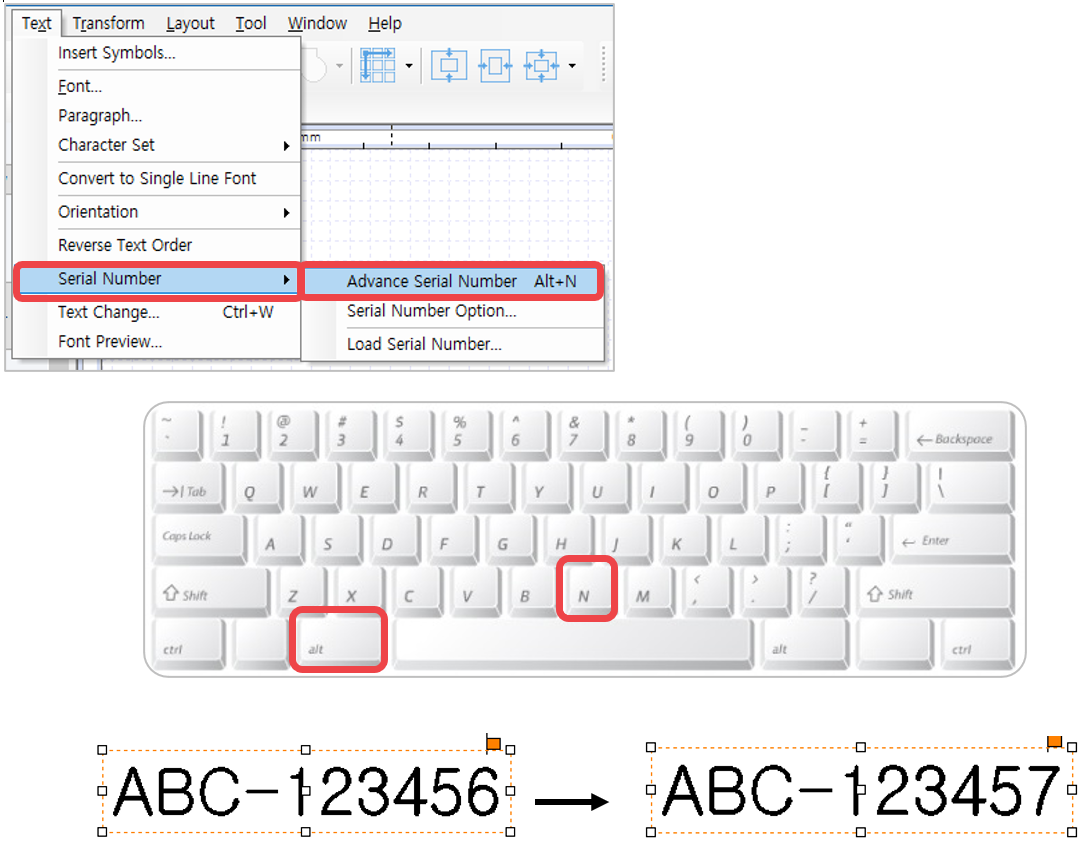
1. Edit the font and size of text object with a number then press “Alt+N” key on a keyboard, or select [Menu] → [Text] → [Serial Number] → [Advance Serial Number] to change the number automatically.
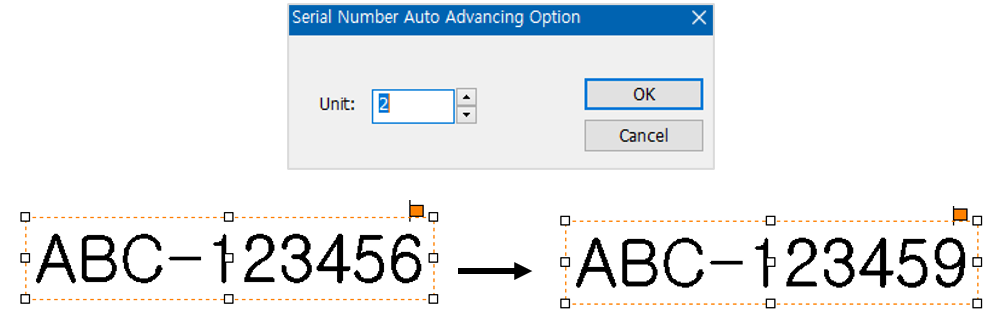
2. Select [Menu] → [Text] → [Serial Number] → [Serial Number Option] then enter a unit from the “Serial Number Auto Advancing Option” to change the serial number based on the assigned unit automatically.
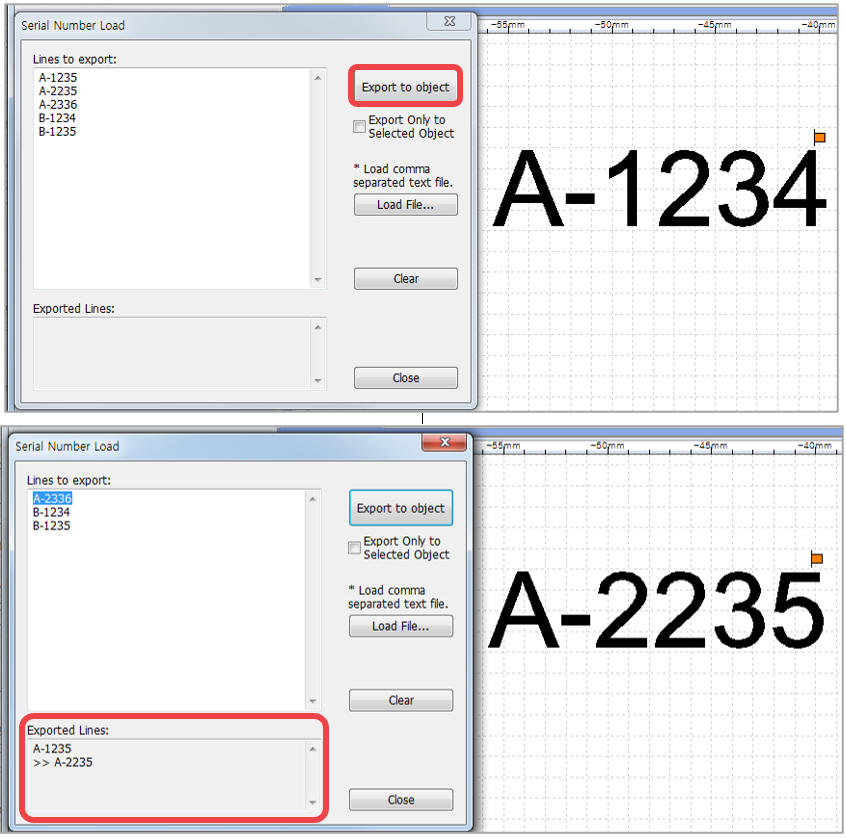
3. If the serial number is not consistent, select [Menu] → [Text] → [Serial Number] → [Load Serial Number].
Enter serial number in the “Lines to export” field or click “Load File” button to load from a file (.txt or .csv file format). Once the serial numbers are loaded, click “Export to object” button. The text on the selected text object is automatically changed, and the serial number is deleted from the list. The deleted numbers will be shown in the “Exported Lines.”
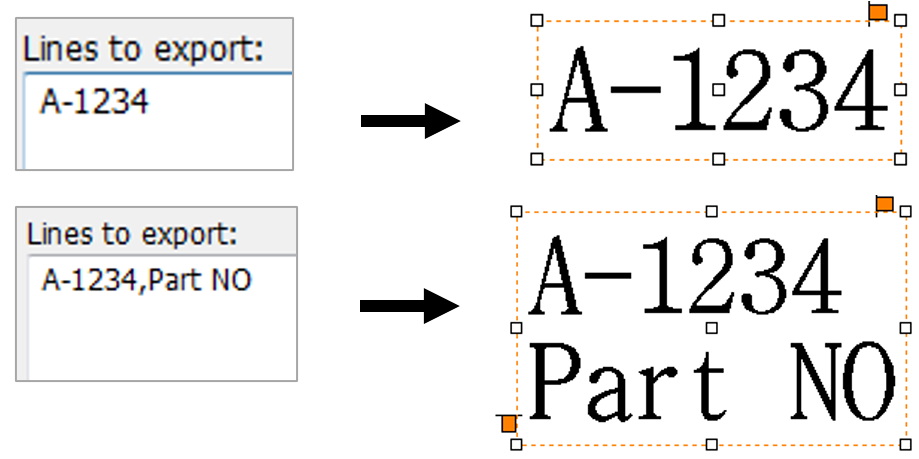
Serial numbers can be loaded from a file separated by a comma (.csv) or text file (.txt).
Each row of the file is recognized as one serial number, and the contents of each row separated by a comma are shown in the next line.