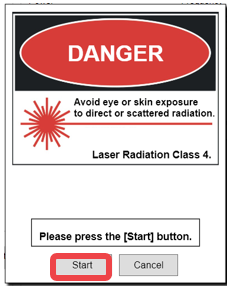
¶ Contents
- 1. Machine Installation
- 2. Program Installation
- 3. Blower box Installation
- 4. Auxiliary power device setup
- 5. External device
- 6. Operation of the Marking Machine How to operate
※Please follow the instructions below for proper installation of the machine, software and other devices.
※The software program requires Windows OS 10 or higher.
¶ 1. Machine
MAGIC-L3 Prime cannot operate alone as a desktop engraver. It cannot proceed to laser marking and cutting operation without the use of a computer and a software.
The machine should be connected to a personal computer for the machine to operate. The software provided along with the machine must be installed to the computer to run the program for laser marking and cutting.
¶ How to install the machine
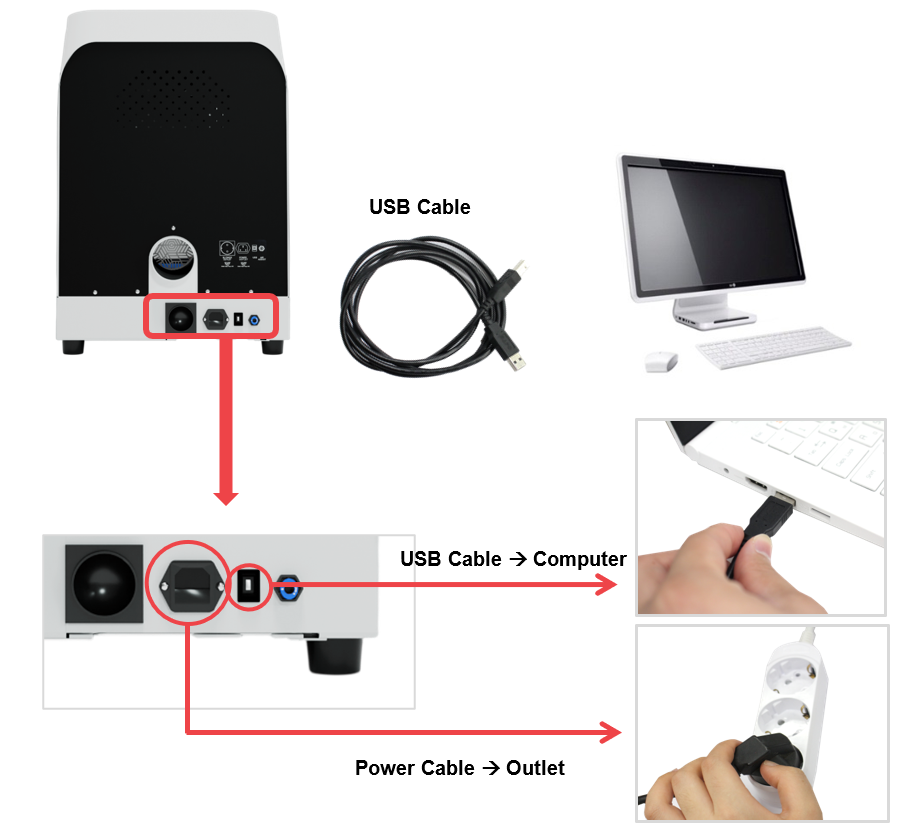
- To start the machine, plug its power cable into a grounded outlet. ※See precautions for use for safety.
- To connect the machine to the computer, plug in the USB cable on the back of the machine then on the computer’s USB port.
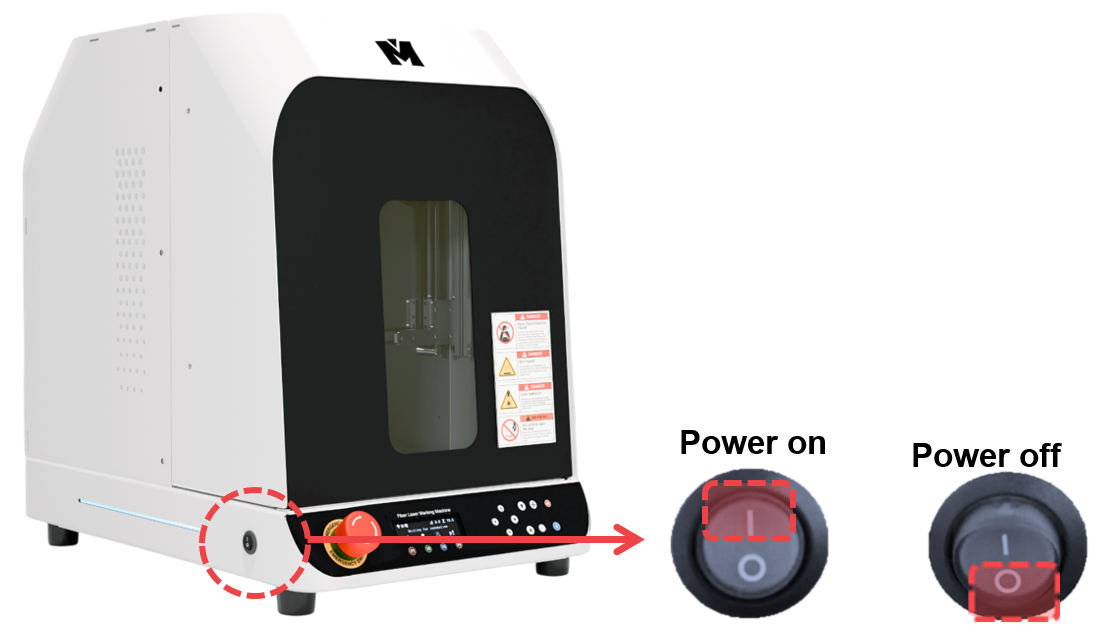
¶ Power switch
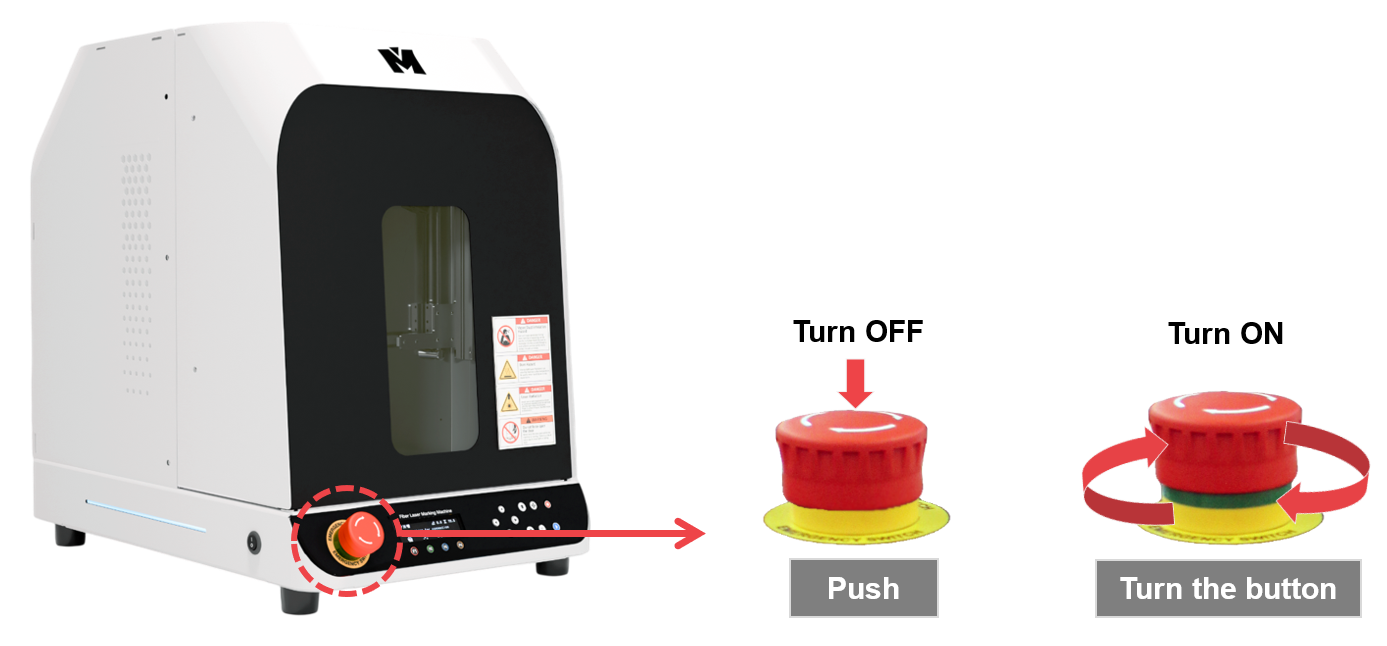
¶ Emergency Switch
※If the machine won’t turn on, check the emergency switch.
¶ 2. Program
[System requirements]
-Supported devices: PC
-Operating system: Windows 10 or higher
-Processor: Intel® Pentium® CPU or higher
-Memory: 4GB or more
[How to install the software]
1. Insert the USB into your computer`s USB port. A notification will pop-up on your screen regarding installation. ※USB is included in the package.
2. Follow the instructions below to install the software.
3. Follow the steps in order until installation is complete.
4. In case program installation won’t automatically run upon inserting the USB into your computer, go to My Computer’s USB drive then run Install program.
- Setup wizard.
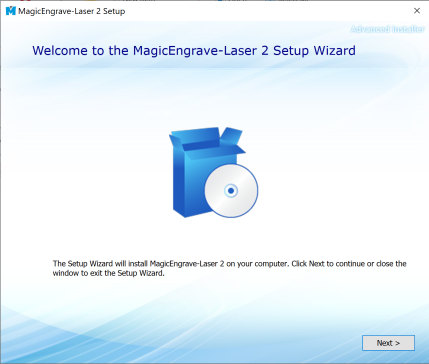
- Select installation folder.
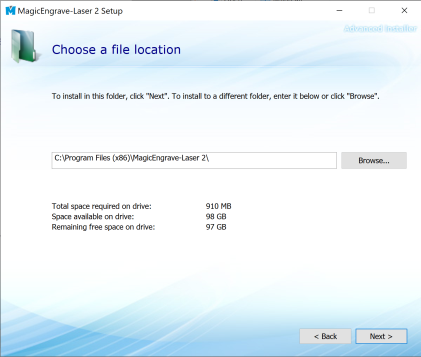
- Confirm installation.
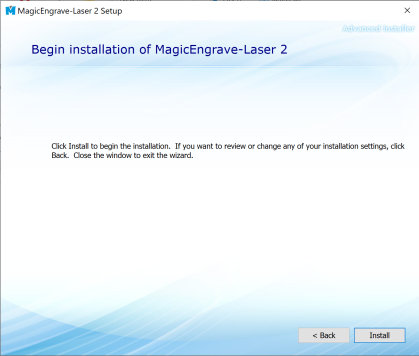
- The file is copied onto the hard disk.
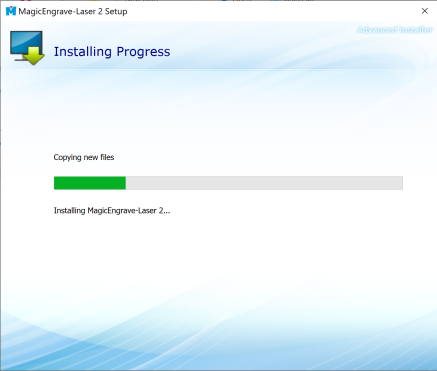
- USB driver setup wizard.
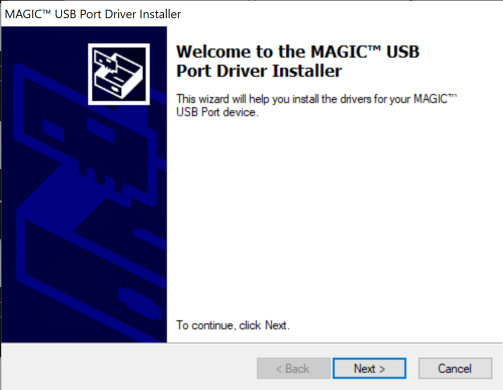
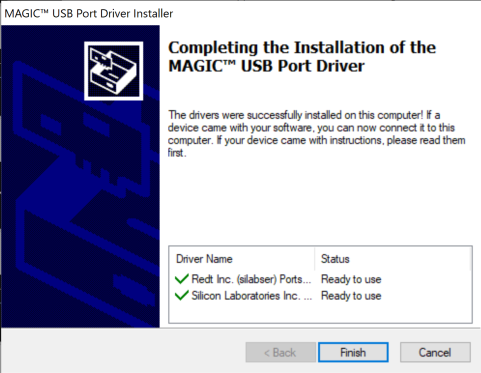
- After verifying the connection status, click the [Finish] button.
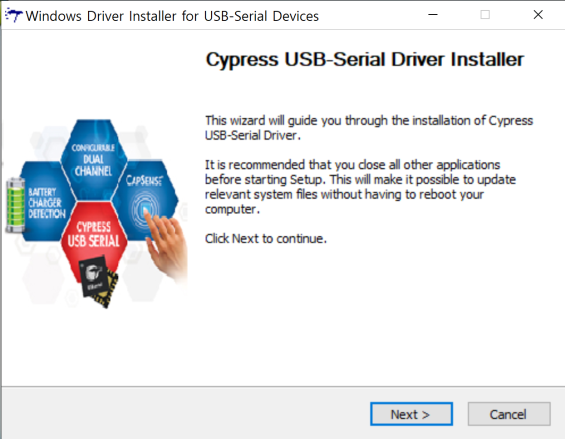
- Install the serial driver, then click the [Next] button.
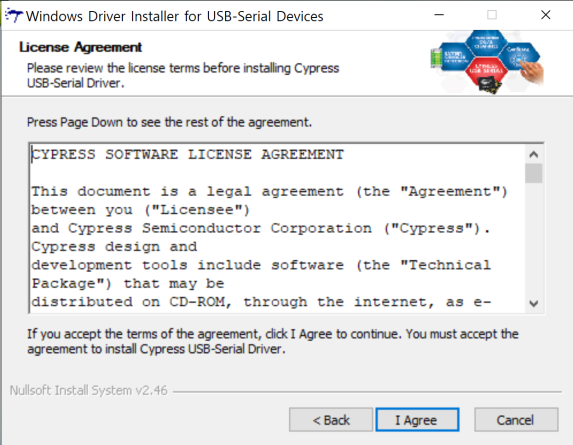
- Select [I Agree].
- Verify the installation location, then click [Install].
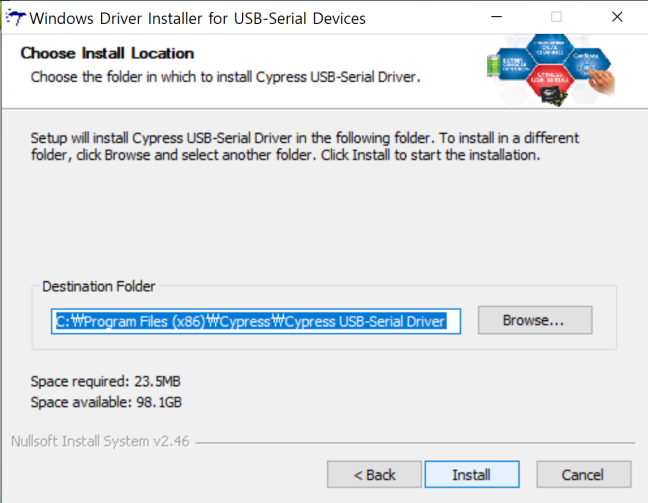
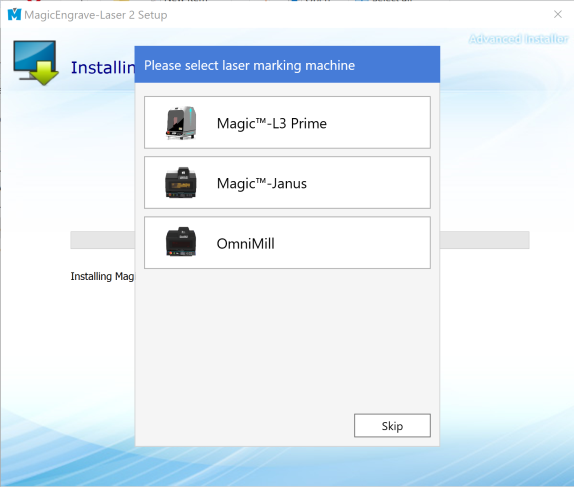
- Once the installation is complete, select the product model.
- Program Description
Once the installation is completed, the following icon will appear on your desktop. The description of the icon is as follows:
 |
As a design & marking software program, it features the following functions: marking design, marking option, Toolpath setting, transfer of Toolpath data. |
 |
As a machine setting program, It features the following functions: Laser focus, Guide laser, Rotary origin, Manual calibration. |
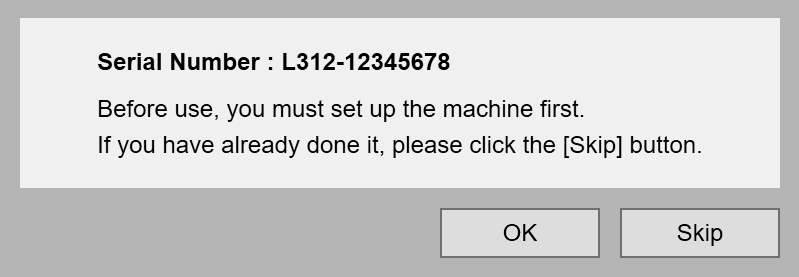
- Program serial number
After installation, the machine’s serial number is recognized and the stored set values in the server is automatically recalled and set.
-Click [OK] button to run set up automatically then the program automatically reconnects once setup is completed.
-Click [Skip] button to skip this process and the setting value will not be set automatically.
- Program password
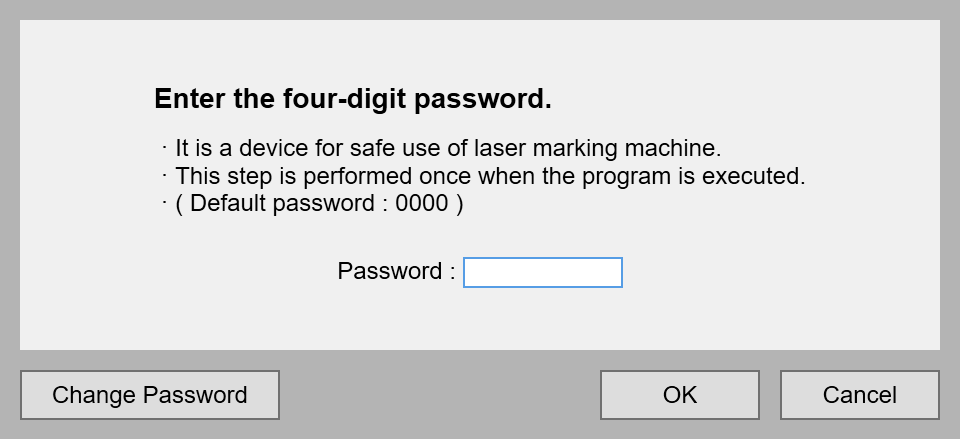
Only administrators can use the program by using the program password.
Please make sure to change the default password.
The program default password is [0000].
¶ 3. Blower Box
※Blower box set is sold separately.
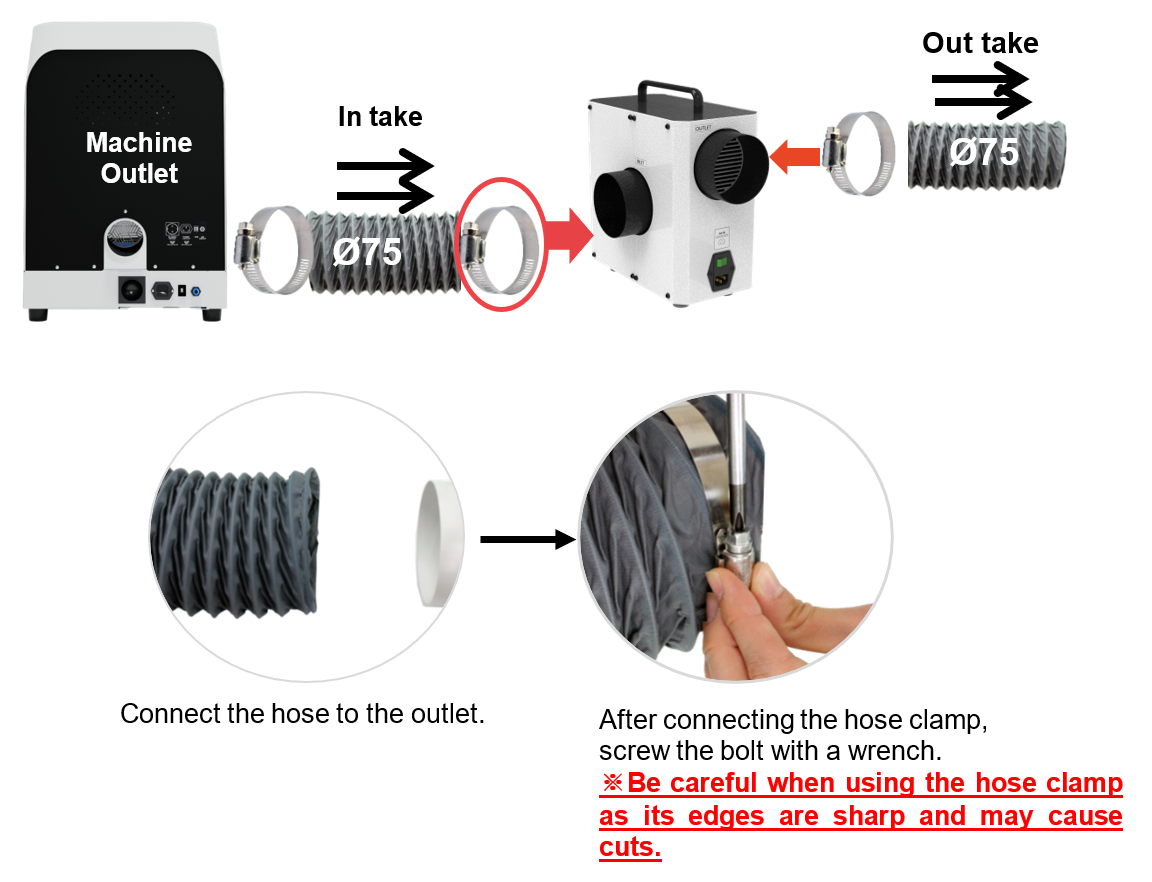
※Be careful when using the hose clamp as its edges are sharp and may cause cuts.
※Using a dust collector or blower rated over 2A may cause machine malfunction. Do not connect or use products that exceed 2A.
| Blower box (CL-100) |
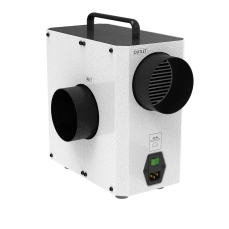 |
1EA | Exhaust for dust & smoke. |
| Blower Hose(75Ø) (CO-56) |
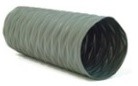 |
2EA | Blower connection hose (1.5m1ea, 3m1ea) |
| Hose clamp(3inch) (CL-104) |
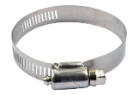 |
3EA | For connecting to blower and hose. ※ Please be careful of the cut surface of the hose clamp as it may cause injury. |
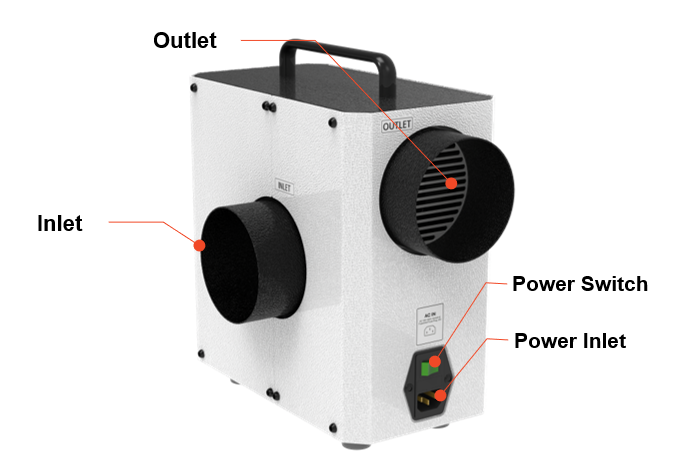
| Inlet | Connects to the duct hose to remove dust generated during processing. |
| Outlet | Connects to the duct hose to discharge dust after collection. |
| Power Switch | Turns the blower ON/OFF. |
| Power Port | Connects the blower to the power source. |
[How to install the blower box]
¶ 4. Auxiliary power device
※Auxiliary power device set is sold separately.
※Auxiliary power device is required when using the blower.
| Auxiliary Power Device |  |
1EA | Auxiliary Power Device must be used if the external blowers or dust collectors have more than 2 Ampere. |
| Power cable |  |
2EA | Supplies power and connects to the machine. |
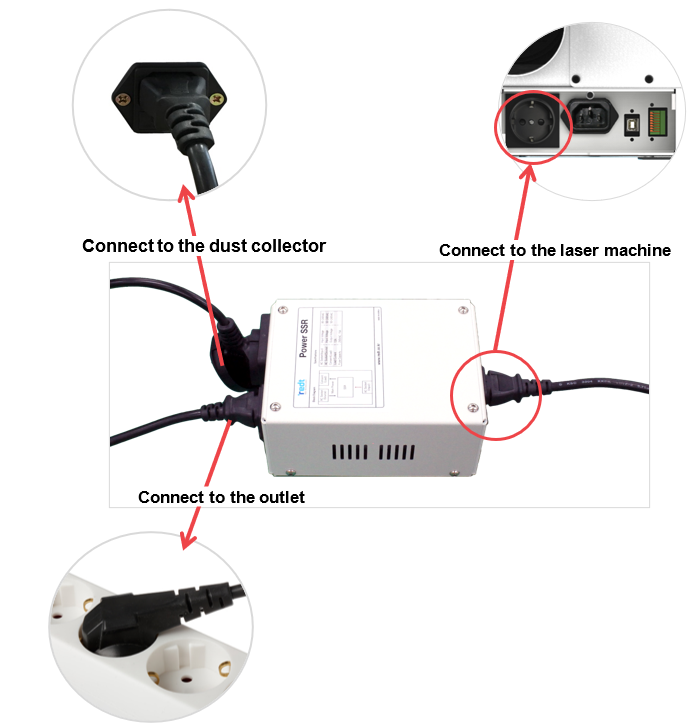
The auxiliary power device must be used if the external blower has more than 2 Ampere. Failure to use this device will result in machine failure.
Connect the auxiliary power device to the laser machine. (See picture below for reference.)
¶ 5. External device
※Blower Power Inlet: 110~220V/2A
※Auxiliary Power Device must be used if the external blower has more than 2 Ampere.
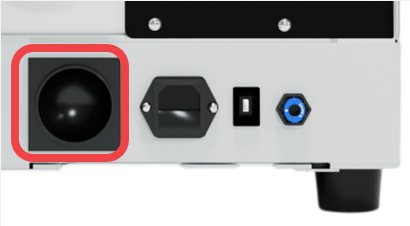
1. Connect the power to the back of the machine.
2. Click [OTHER] in [Setup Machine].
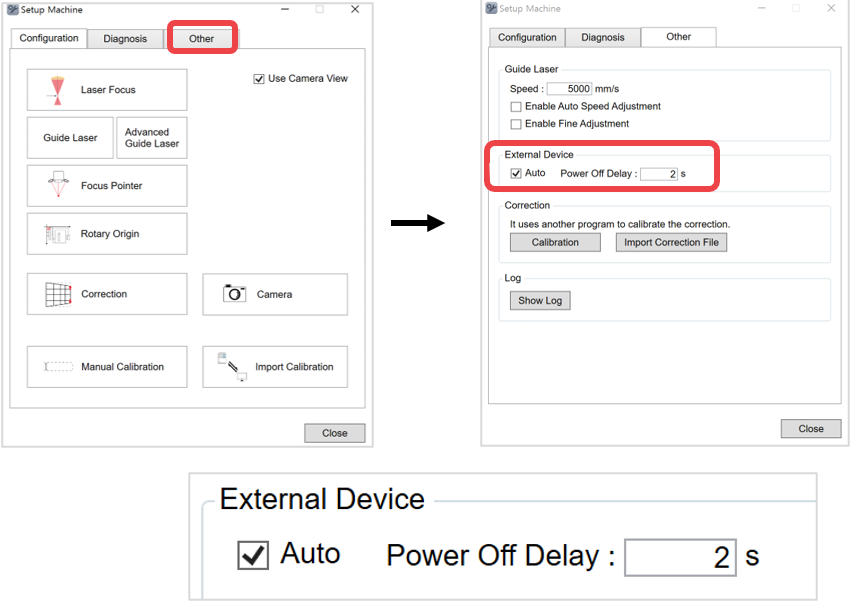
| Auto | If [Auto] checkbox is selected, the auto on/off function of the externa device is enabled during machine operation. If [Auto] checkbox is not selected, the auto control function of the external device is disabled. |
| Power Off Delay | The external device automatically turns OFF after a delay. |
¶ 6. Operation of the marking machine
MAGIC-L3 Prime performs self-diagnosis upon turning ON. During self-diagnosis, the machine checks the following in order:
¶ 1) Self-diagnose Procedures
- If a certain axis is detected by the sensor, it moves away from the detected area.
- Checks the cover sensor.
- Checks the z-axis sensor and returns to the origin point.
- Returns to the origin point.
- Confirmation sound and standby
If no problem is found, it goes into standby mode with a confirmation sound.
¶ 2) Marking Procedures
1. Turn on the marking machine.
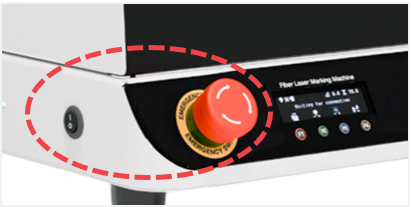
※ If the machine does not turn on, check the emergency switch.
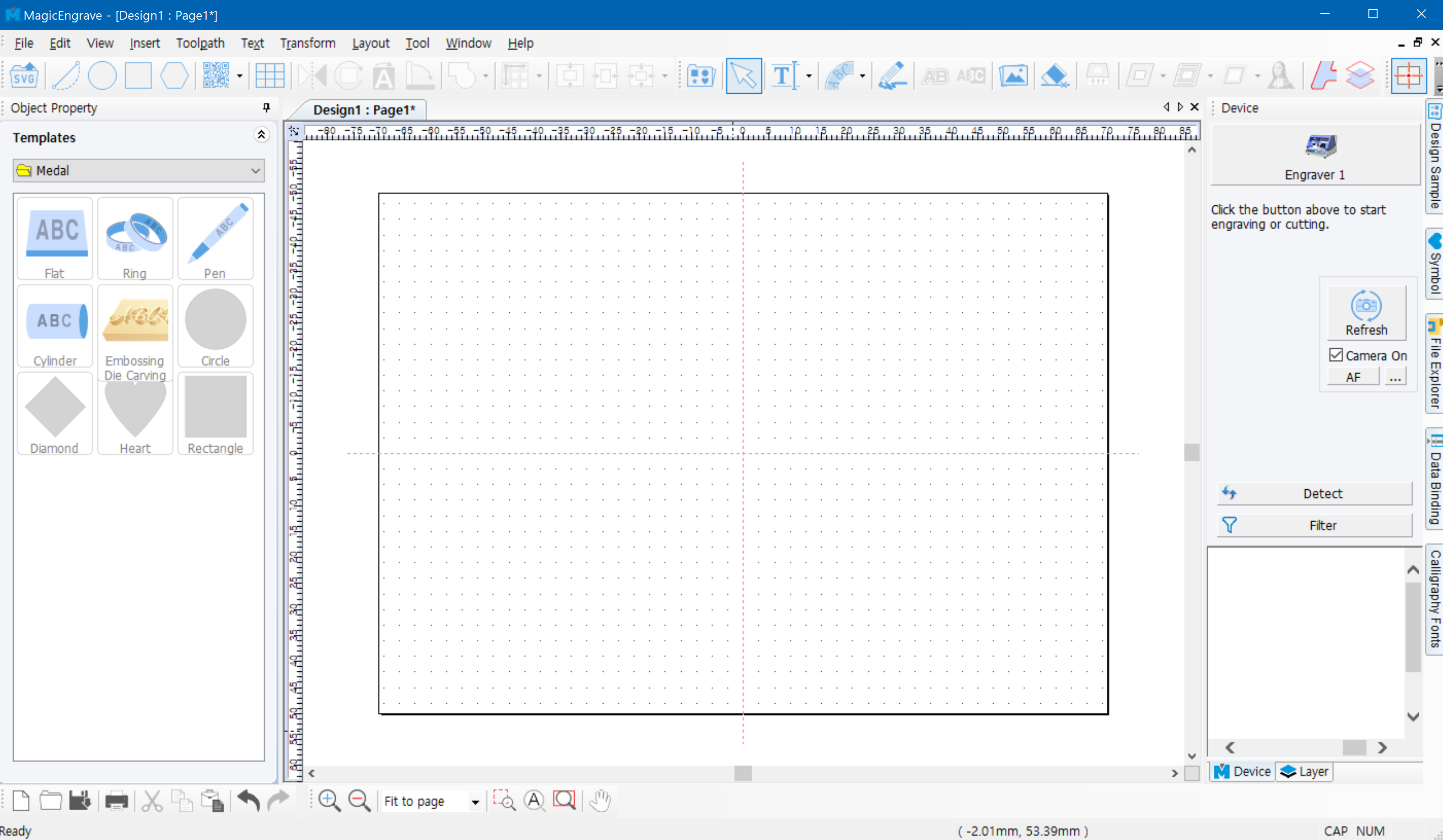
2. Run the program to connect it to the machine.
※When the machine is connected to the program, the machine’s cover automatically opens upon initialization.
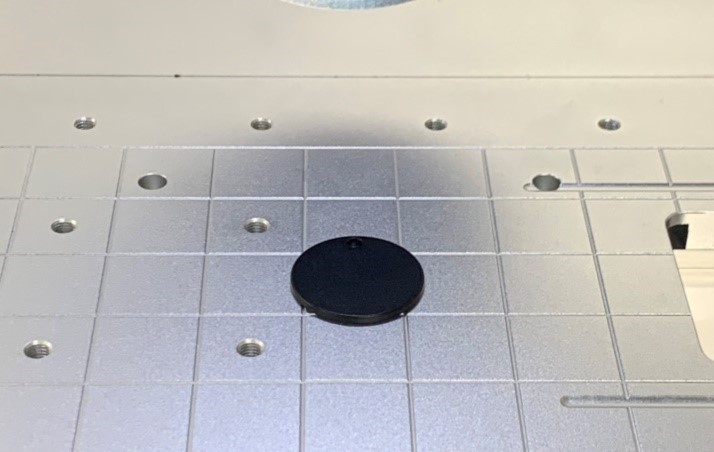
3. Place your material on the work area.
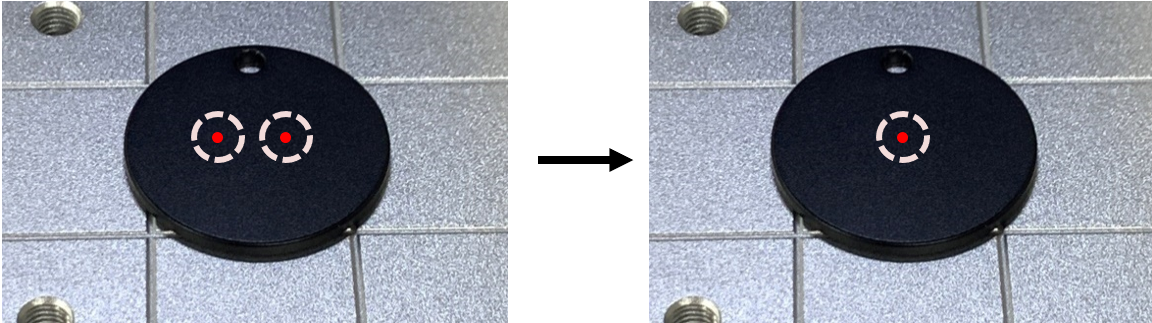
- Use

 direction key buttons to set the laser focus.
※When using auto focus, also set the laser focus.
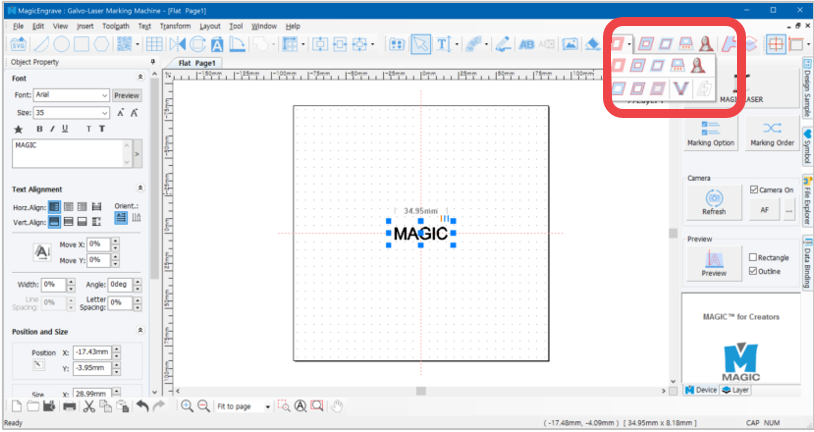
5. Make your design then create a toolpath.
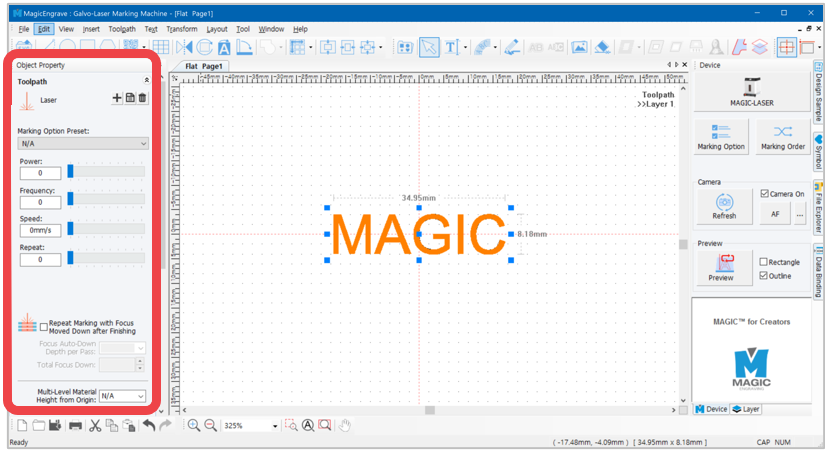
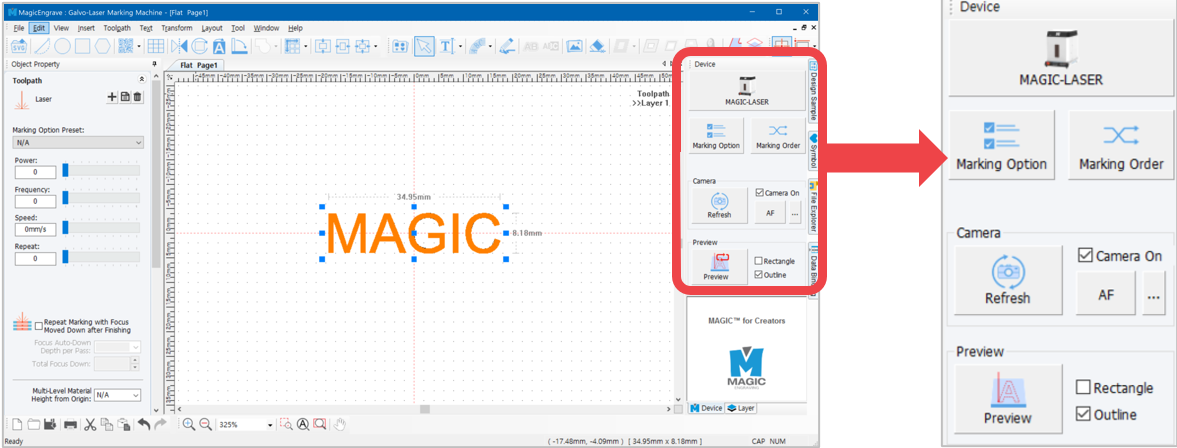
- Set the laser marking option.
- Click the [Machine] button to send the marking data.
- Click [Start] or long-press
 (for more than 2 seconds) to start marking.