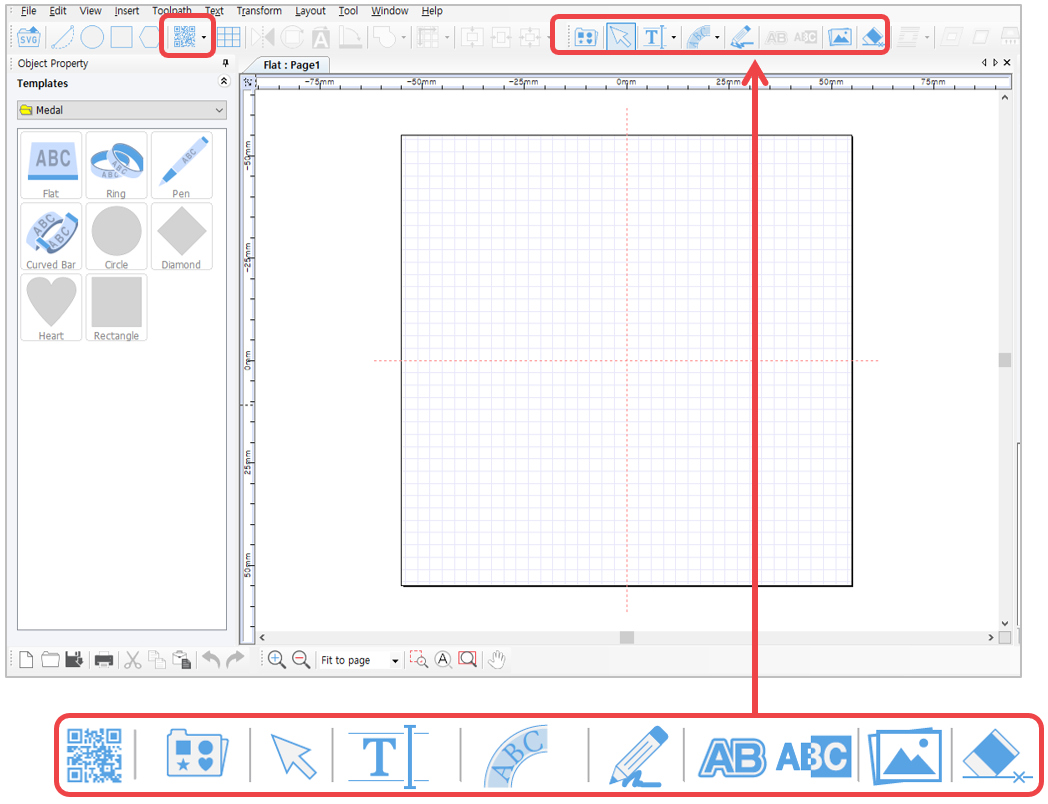
 |
[Barcode] | Create a barcode object.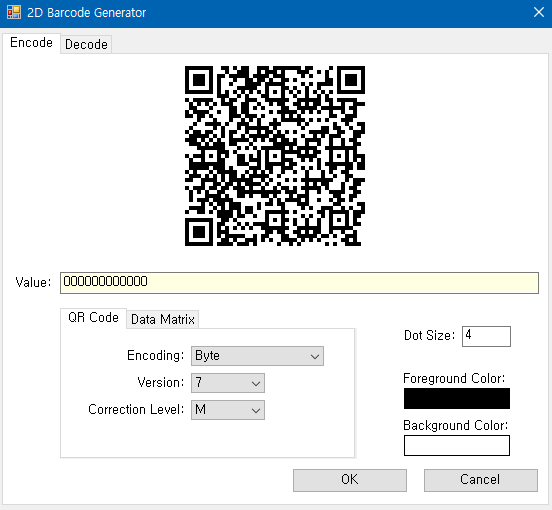 |
 |
[Design sample] | Import design sample or save current object as design sample.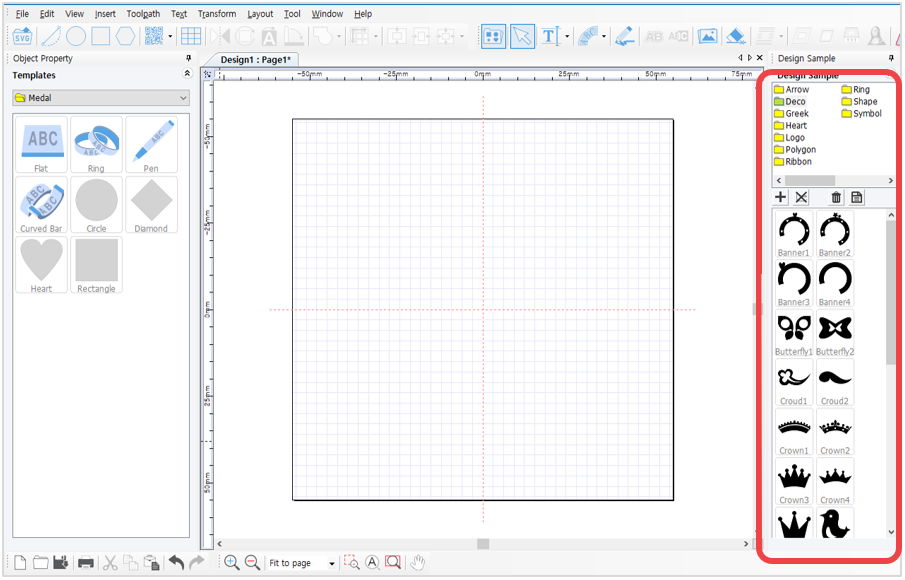  What is a Design Sample? Design sample is the object saved in the design sample library. Design samples can be easily and quickly imported from the design sample library and edited freely. |
 |
[Selection] | Use selection mode to modify the object’s property or adjust its size and position. To use, click the object created in the work area then adjust its property. To input text, right-click. 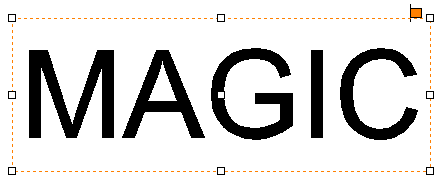 [Object selected] [Object selected]  [No object selected] [No object selected] |
 |
[Text input] | To input text, click “Text input” button then click the object in the work area or, simply double-click to enter text. To modify the object’s font style and size, click “Text input” button then hold and drag the character/s with the mouse. 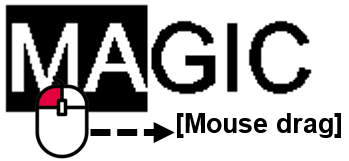 Click LMB button to create a text box. Then hold and drag the mouse to adjust the size of the text box. The size of the text box limits the number of character input.  A blinking cursor display indicates ‘enter text.’  Or, go to [Menu → Insert → Text box]. 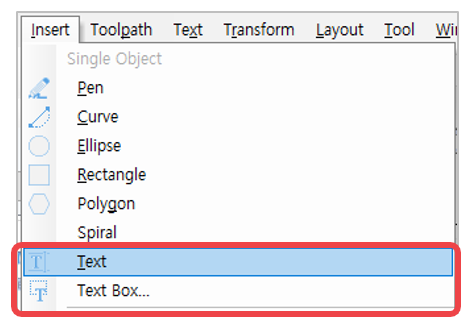 |
 |
[Circular text] | Create text objects along a circle.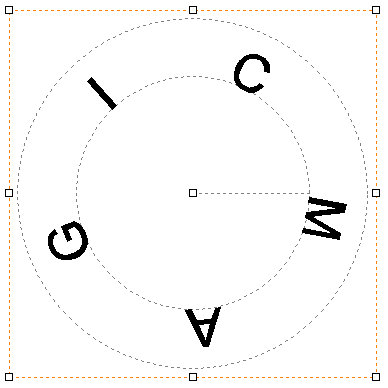 |
 |
[Drawing pen] | Hold and drag the mouse to draw character/s to create an object with the use of drawing pen. The drawing line’s thickness can be adjusted in the drawing object property window.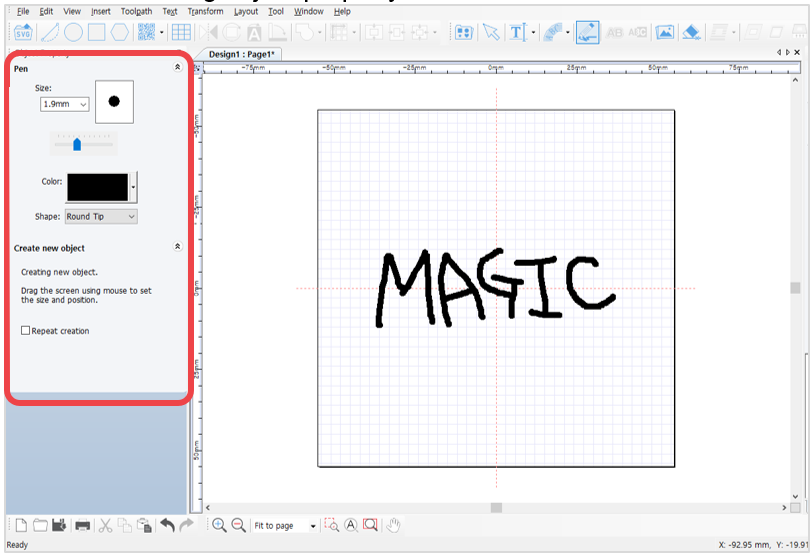 |
 |
[Outline stroke of object] | Apply outline stroke to the object.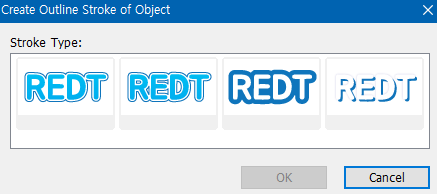 |
 |
[Auto Inverts Color] | The color of one object auto inverts to opposite color to contrast the other object’s color when overlapped. Click [Auto Inverts Color] button then select the object to be placed over the target object. Upon pacing the selected object over the target object, the selected object auto inverts to an opposite color.  For texts, click the [Auto Unverts Color] button then drag the selected text and place it over the target object. 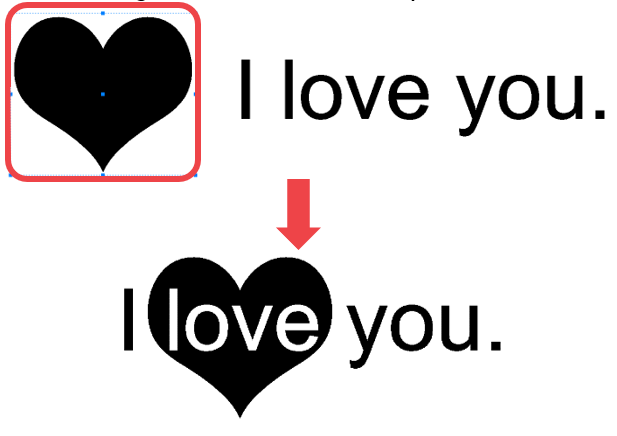  If the color is not inverted, go to [Layout menu → Order → Top Most] then place the selected object over the target object. |
 |
[Image] | Import image (e.g., bmp, jpeg, gif, png … etc.).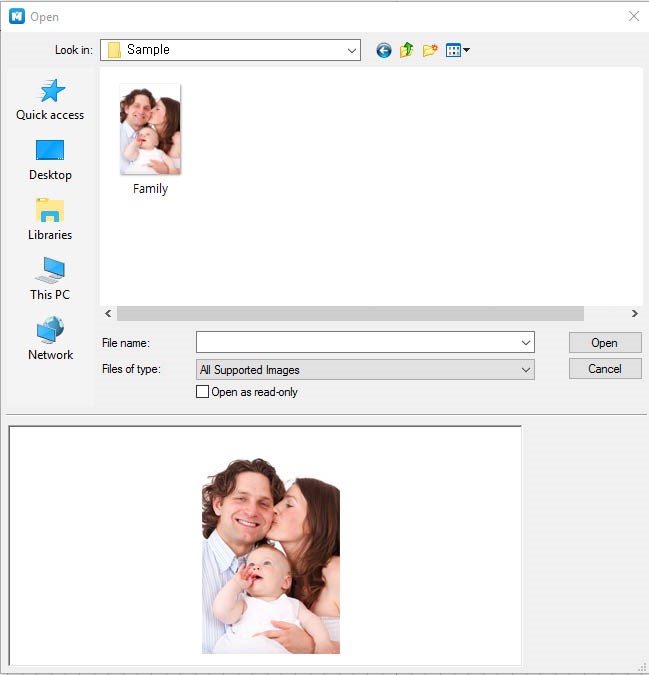 |
 |
[Line eraser] | Erase the line of a created object. Click the object to be erased then hold and move the mouse over the line to erase. (Take note that some objects may not be erased with the Line eraser tool).  |