¶ Creating template 1
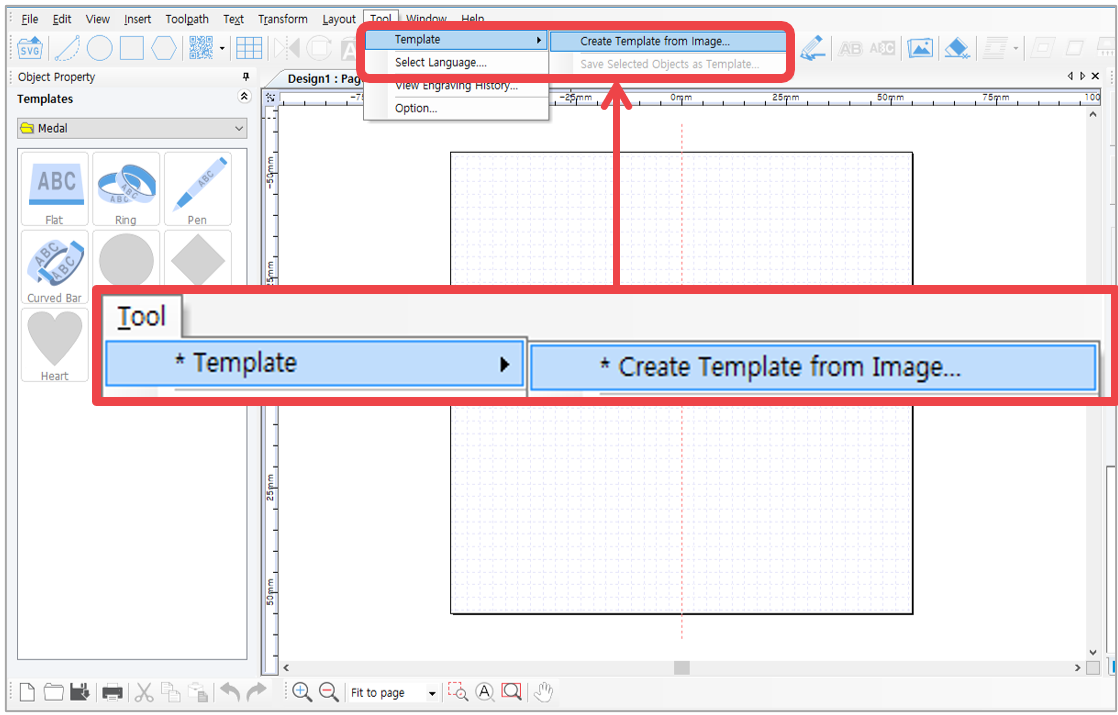
1. Select [Menu] → [Template] → [Create Template from Image].
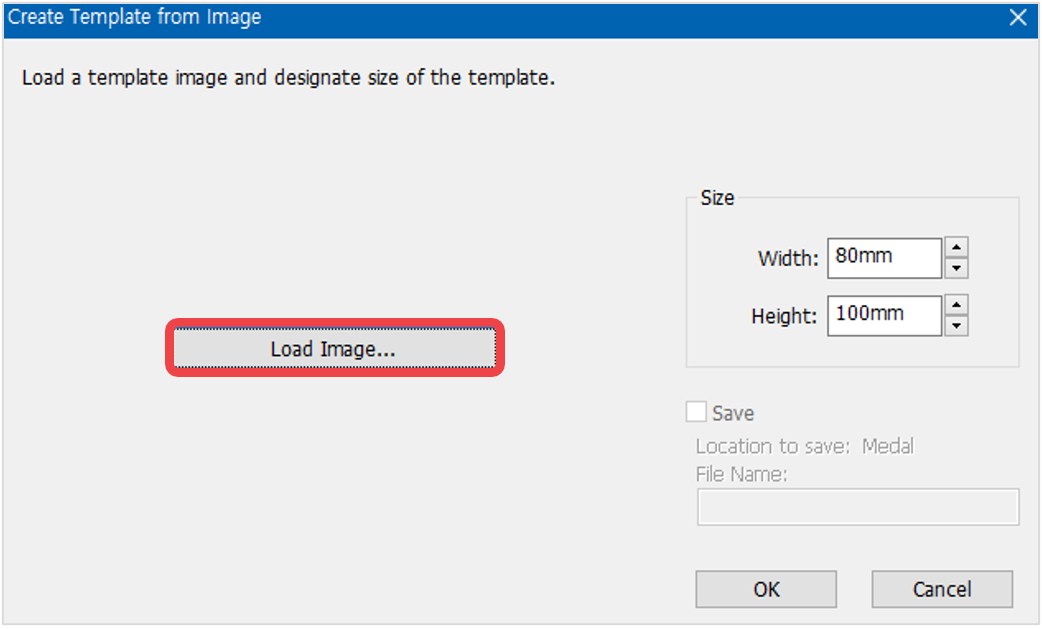
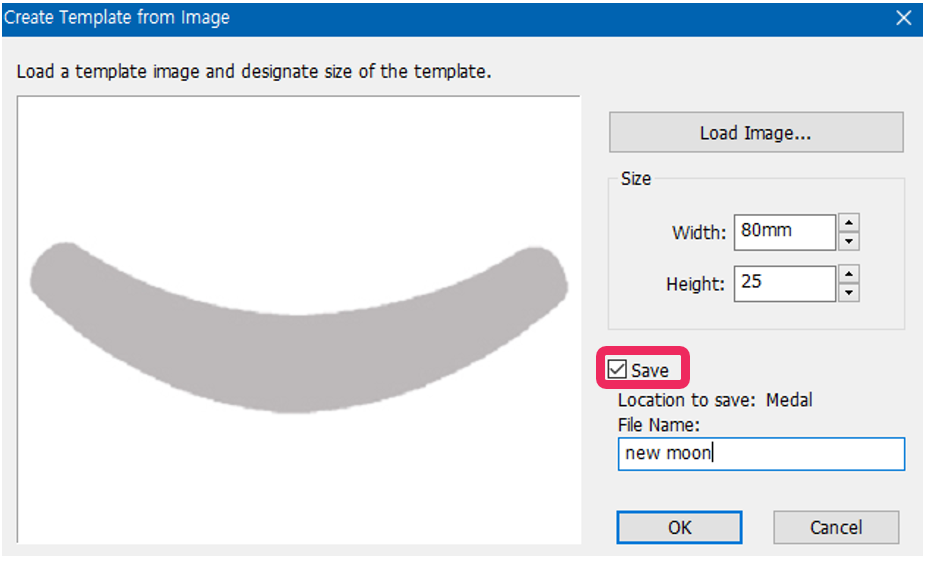
2. "Create Template from Image” window will appear.
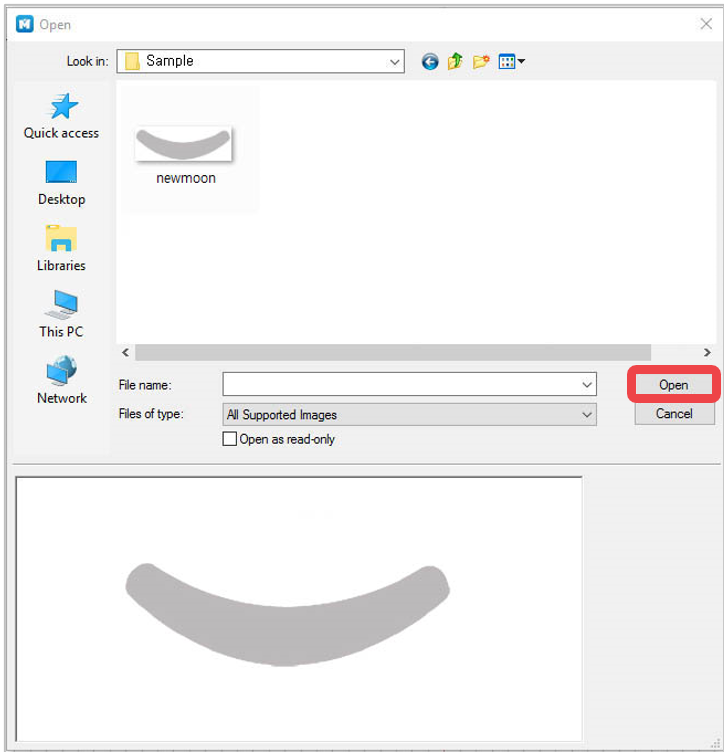
3. Select the image file (jpeg, bmp, png and etc.) from the “Open” window then click “Open” button.
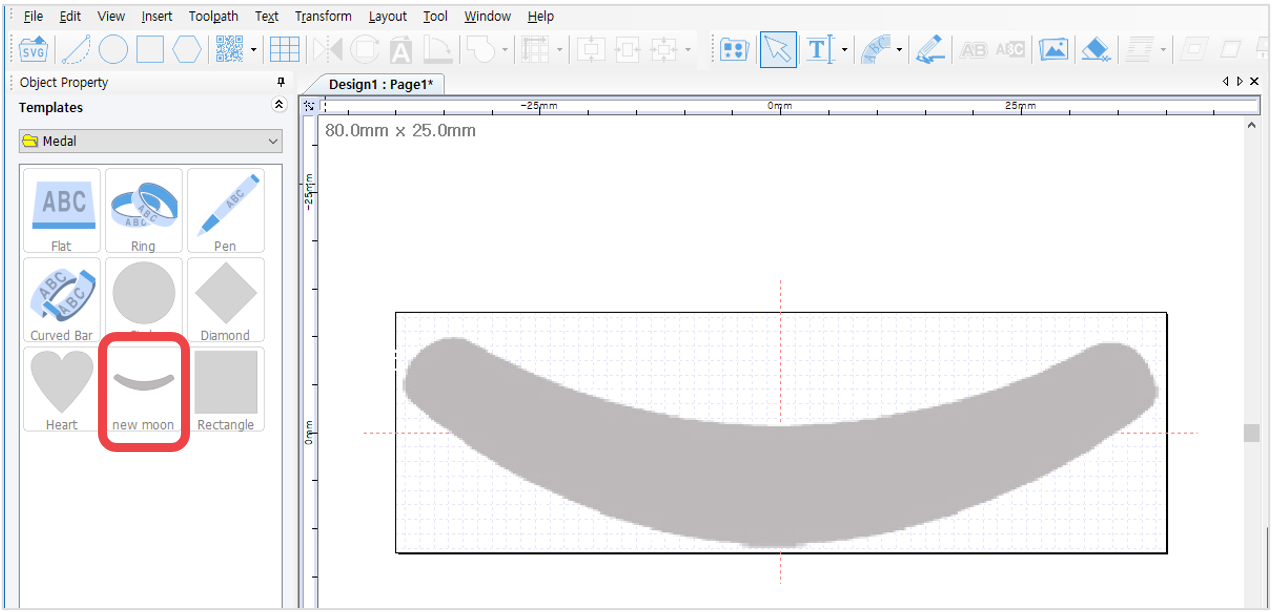
4. Enter the size of the template. Check “Save” to save the image as a template for later use then enter the file name. Click “OK” button to load the image as a template. The image will be saved as a template in the template library.
¶ Creating template 2
1. Select the objects then click [Design Sample] button. Select a folder from the design sample library window to save the created design.
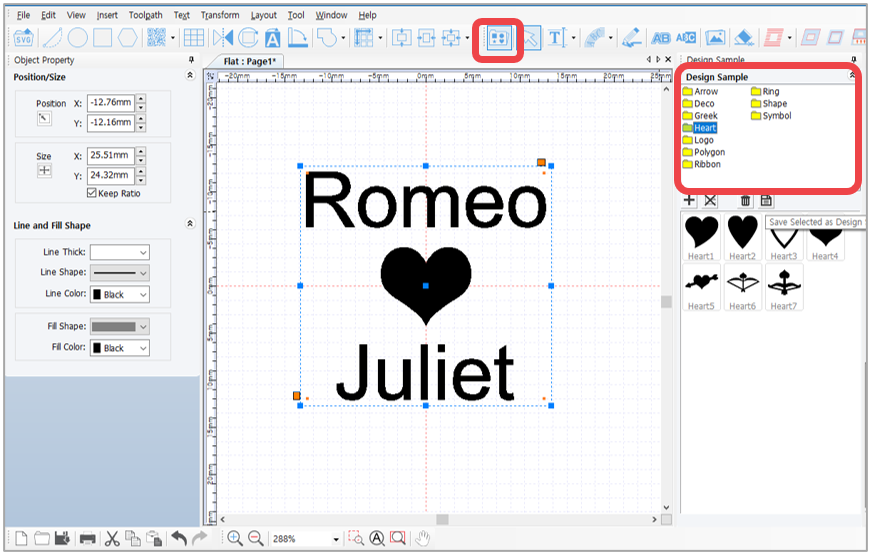
2. Click [Save selected image as sample] or right-click the design sample image then click “Save Selected as Design Sample” on the menu.
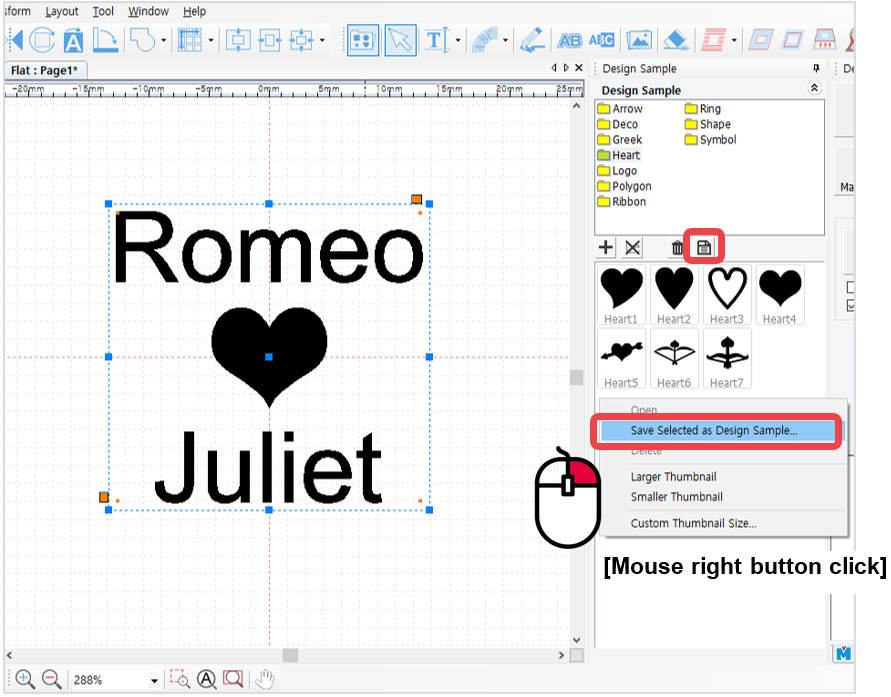
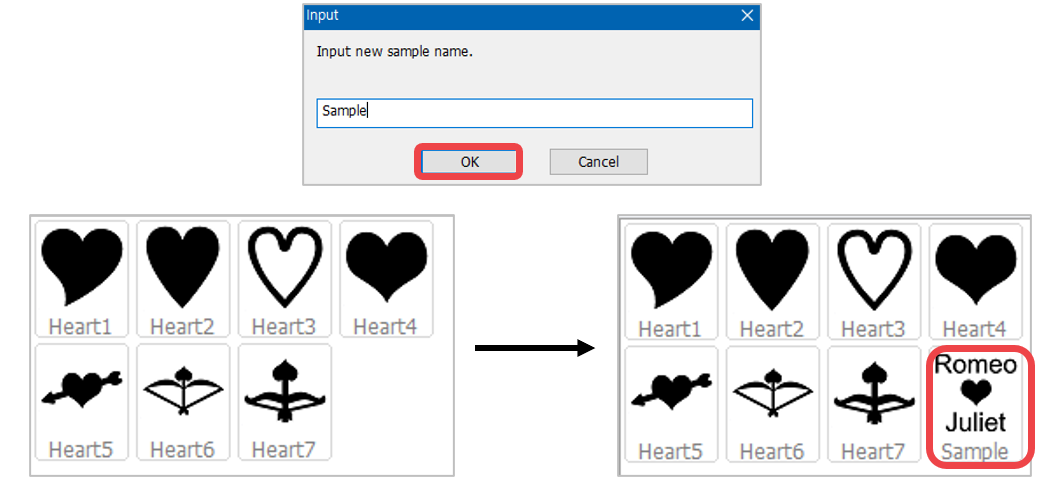
3. Enter the name of the design created then click “OK” button. The design will be saved in the design sample library.
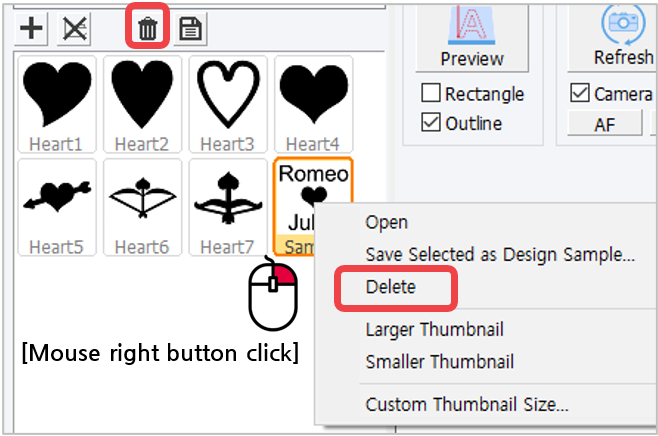
✽ Right-click in the design sample window to see more features. The design sample can be deleted by
right-clicking in the design sample window then select [Delete] on the menu.